Updated by 2025/2/17: AIX 7200-04-00 成功更新到 7200-05-06-2320,使用官方更新程序,時間花費 5 小時 10 分。
#### QEMU commands PowerPC System Board-specific ```bash qemu-system-ppc64 --machine help ``` ``` cobra@fedora-vm:~$ qemu-system-ppc64 --version QEMU emulator version 8.2.6 (qemu-8.2.6-3.fc40) Copyright (c) 2003-2023 Fabrice Bellard and the QEMU Project developers ```這版的 QEMU 已經修復了 ps, crontab, cron, java 指令問題。
#### Install AIX from CD-ROM Create a VM disk ```bash mkdir aix72VM cd aix72VM qemu-img create -f qcow2 hdisk0.qcow2 20G ```注意: AIX 版本必須 7200-03-00 以後版本才有支援。
aix\_7200-04-00-1937\_1of2\_112019.iso ```bash cd aix72VM mv aix_7200-04-00-1937_1of2_112019.iso AIX72.iso ``` Boot from cd-rom ```bash cd aix72VM qemu-system-ppc64 -cpu POWER8 \ -machine pseries -m 4096 -serial stdio \ -drive file=hdisk0.qcow2,if=none,id=drive-virtio-disk0 \ -device virtio-scsi-pci,id=scsi \ -device scsi-hd,drive=drive-virtio-disk0 \ -cdrom $PWD/AIX72.iso \ -prom-env "boot-command=boot cdrom:" \ -prom-env "input-device=/vdevice/vty@71000000" \ -prom-env "output-device=/vdevice/vty@71000000" ``` Type 1 and press Enter [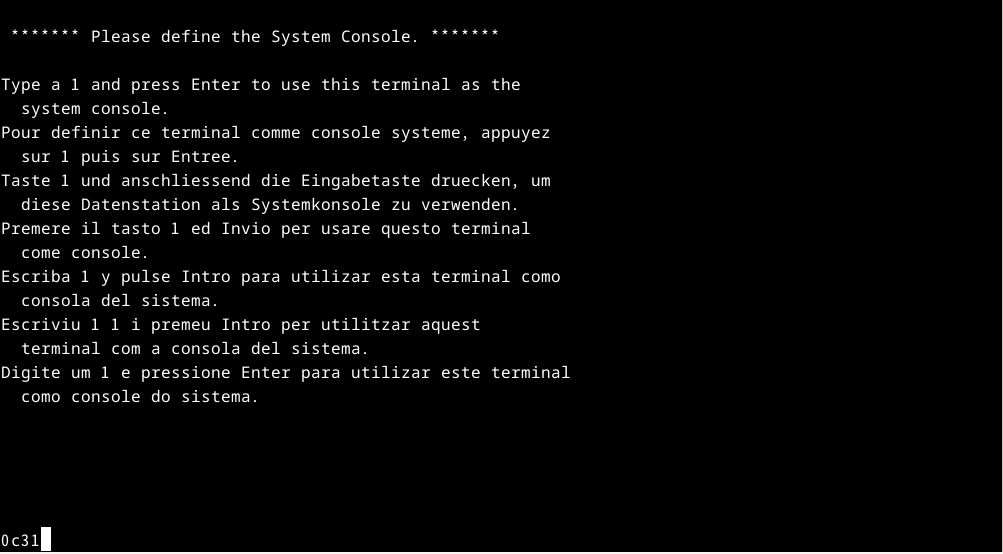](https://osslab.tw/uploads/images/gallery/2024-09/aix-vm-1.png) Press Enter [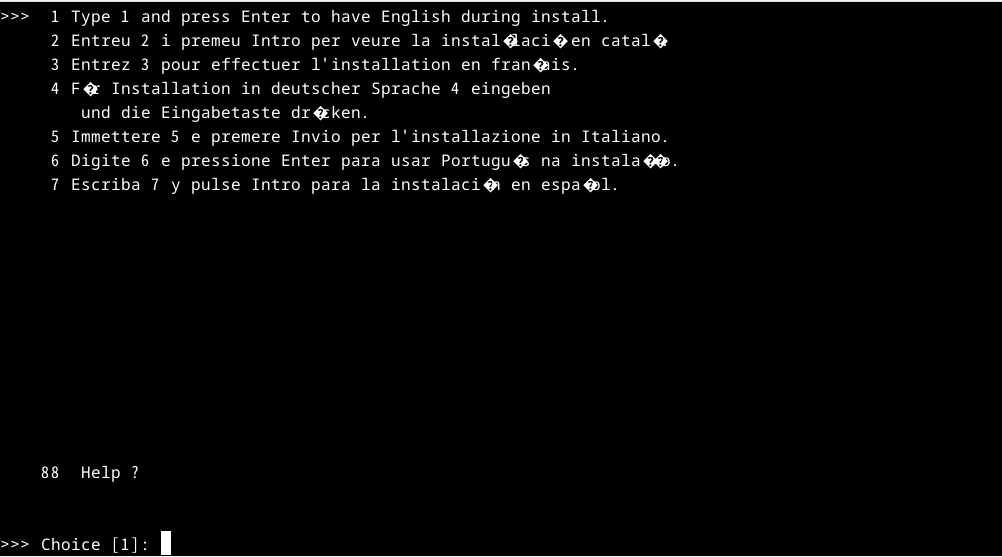](https://osslab.tw/uploads/images/gallery/2024-09/aix-vm-2.png) Type 2 [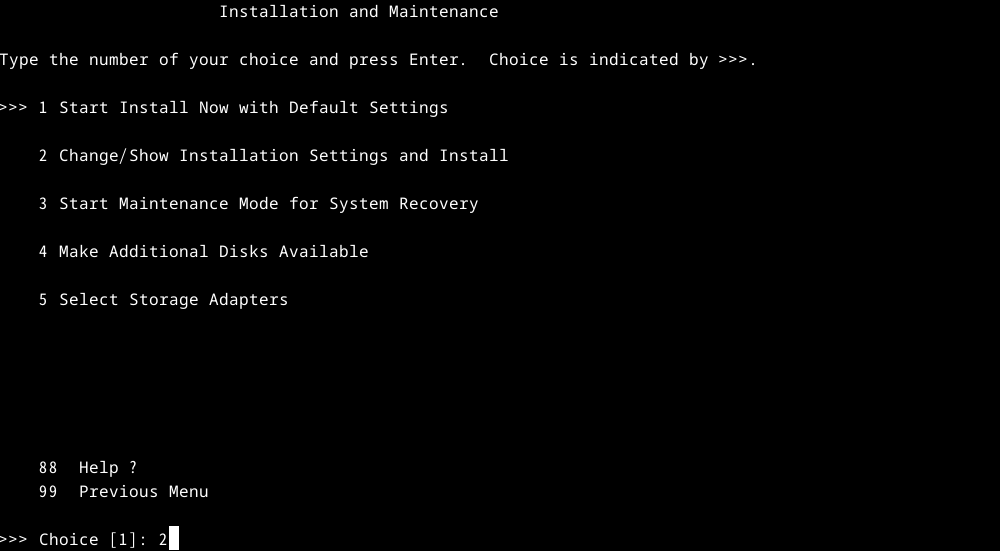](https://osslab.tw/uploads/images/gallery/2024-09/aix-vm-3.png) Type 4 [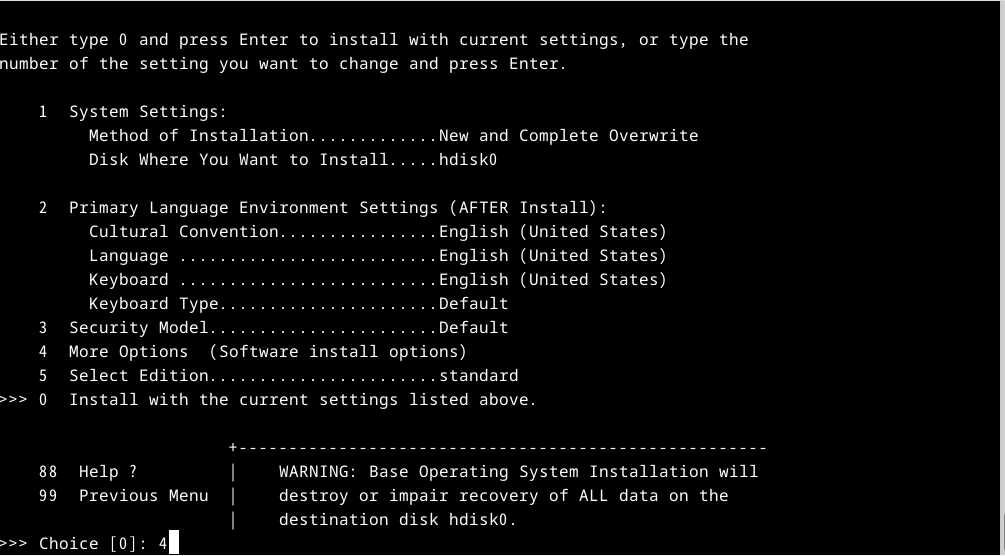](https://osslab.tw/uploads/images/gallery/2024-09/aix-vm-4.png) Type 5 [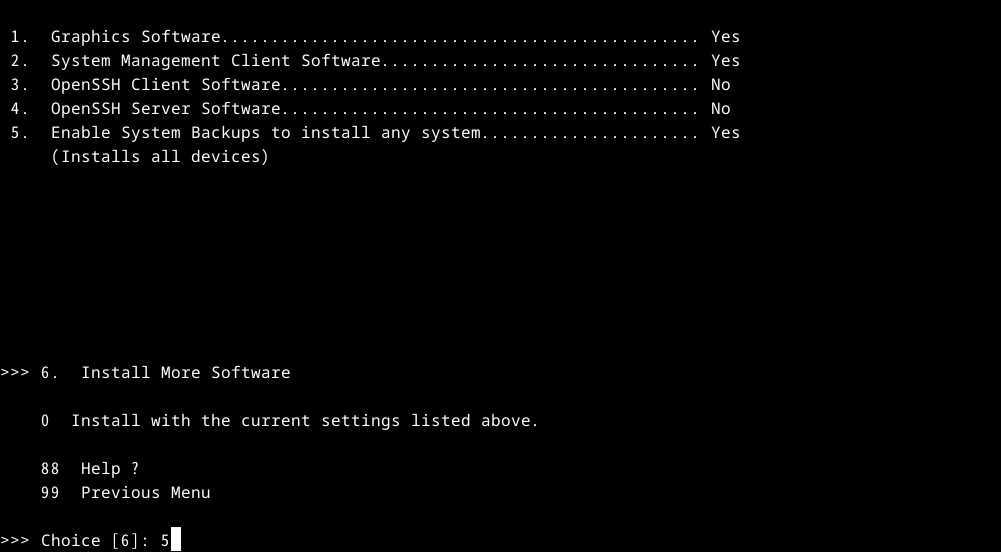](https://osslab.tw/uploads/images/gallery/2024-09/aix-vm-5.png) Type 0 [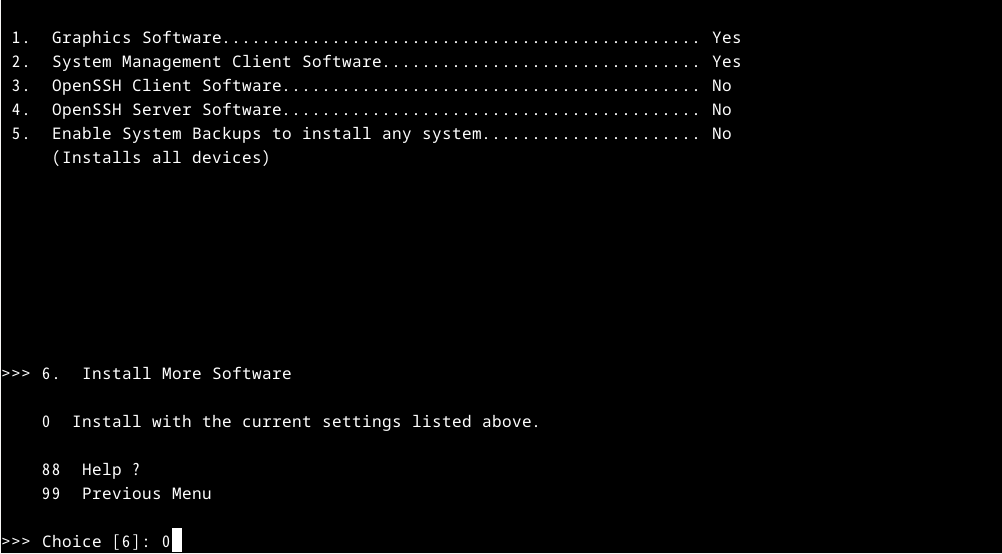](https://osslab.tw/uploads/images/gallery/2024-09/aix-vm-6.png) Press Enter to install AIX [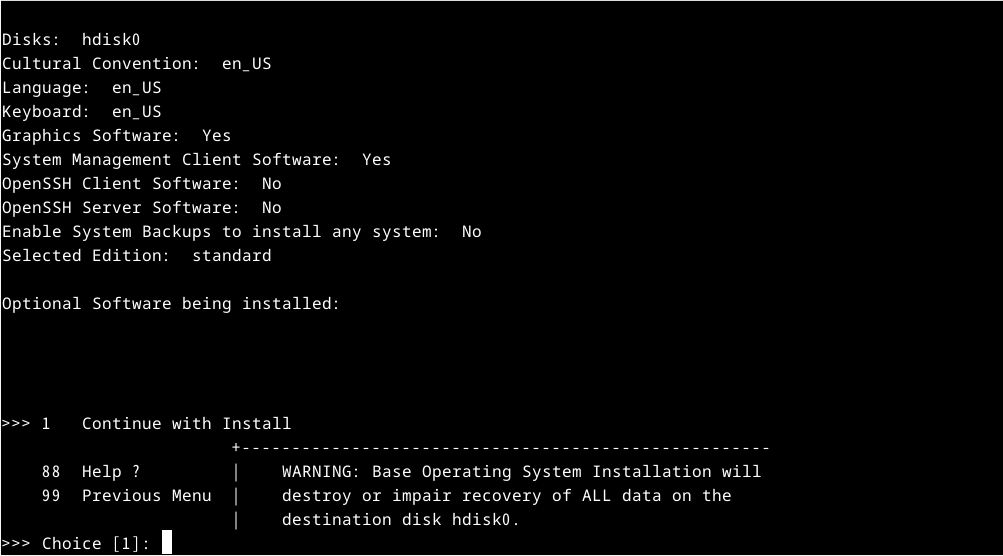](https://osslab.tw/uploads/images/gallery/2024-09/aix-vm-7.png) 看到這畫面時,表示 AIX 作業系統已經完成安裝。 輸入 Ctrl + C 離開 [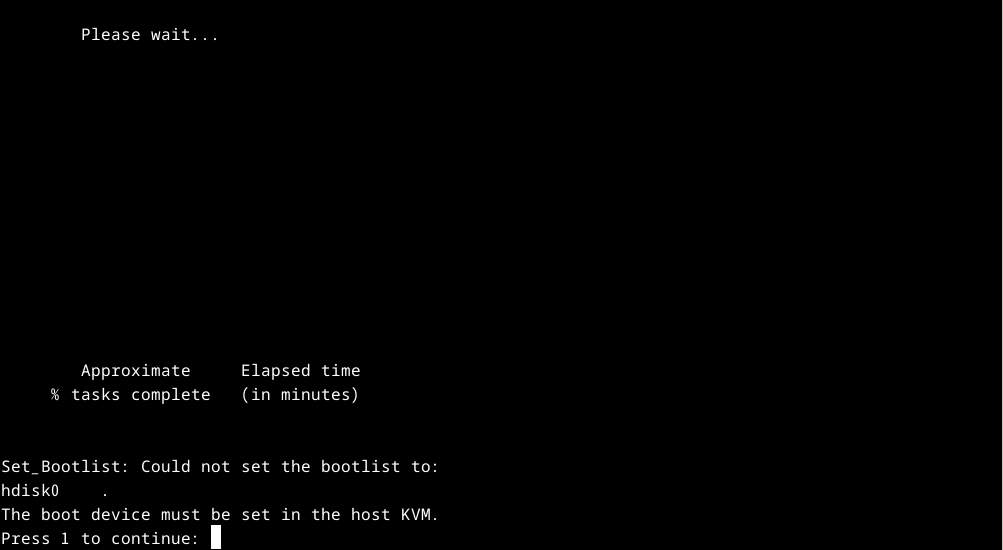](https://osslab.tw/uploads/images/gallery/2024-09/aix-vm-8.png) #### Fix boot issue Boot from cd-rom ```bash cd aix72VM qemu-system-ppc64 -cpu POWER8 \ -machine pseries -m 4096 -serial stdio \ -drive file=hdisk0.qcow2,if=none,id=drive-virtio-disk0 \ -device virtio-scsi-pci,id=scsi \ -device scsi-hd,drive=drive-virtio-disk0 \ -cdrom $PWD/AIX72.iso \ -prom-env "boot-command=boot cdrom:" \ -prom-env "input-device=/vdevice/vty@71000000" \ -prom-env "output-device=/vdevice/vty@71000000" ``` Type 1 and press Enter [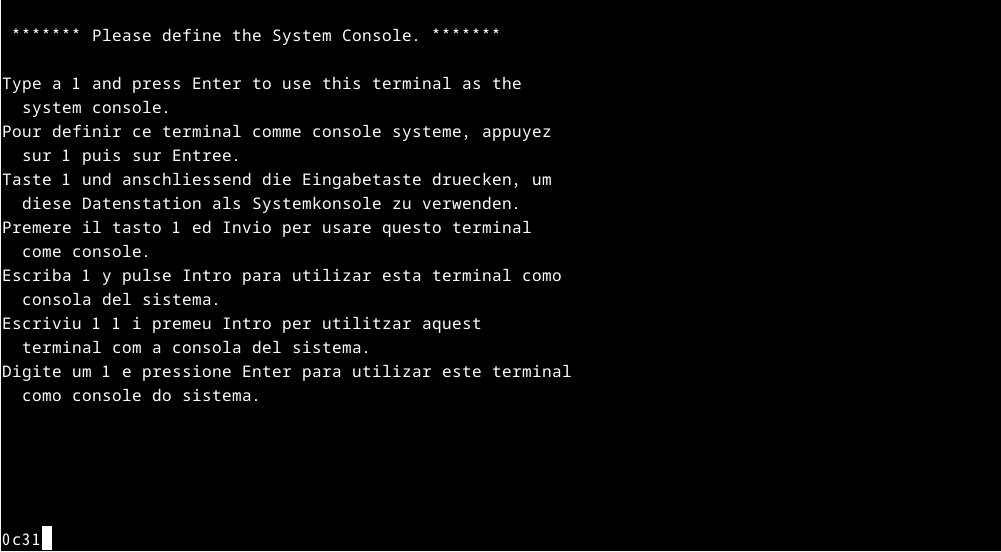](https://osslab.tw/uploads/images/gallery/2024-09/aix-vm-9.png) Press Enter [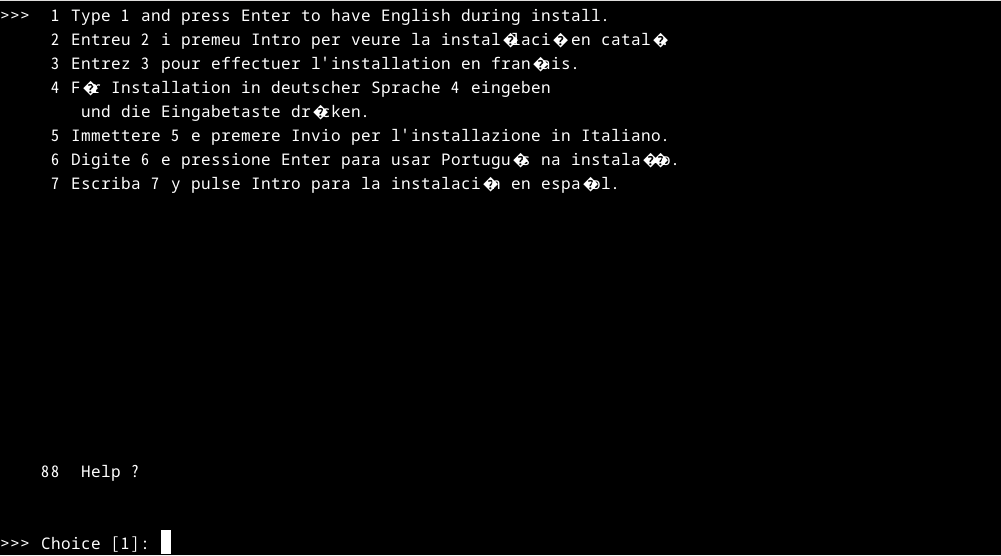](https://osslab.tw/uploads/images/gallery/2024-09/aix-vm-10.png) Type 3 [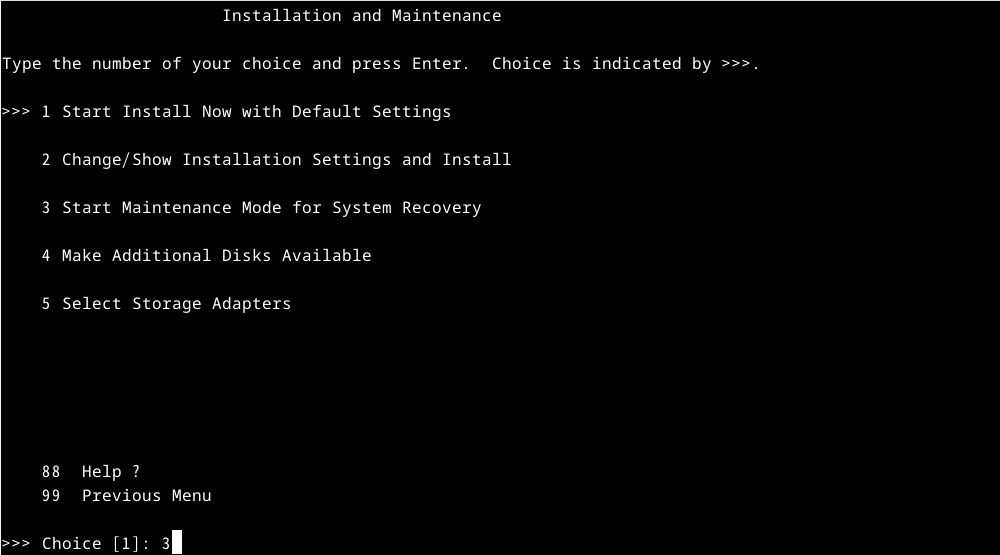](https://osslab.tw/uploads/images/gallery/2024-09/aix-vm-11.png) Type 0 [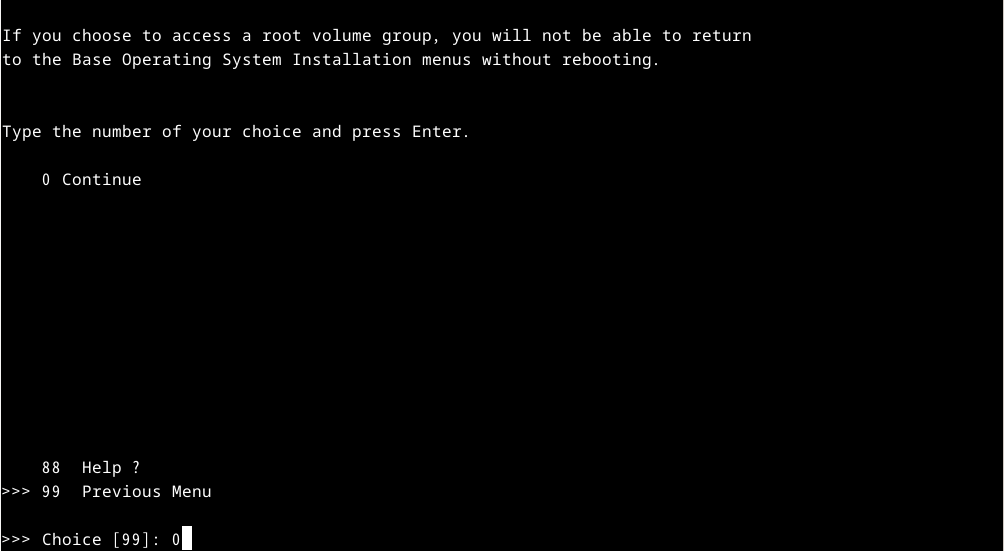](https://osslab.tw/uploads/images/gallery/2024-09/aix-vm-12.png) Type 1 [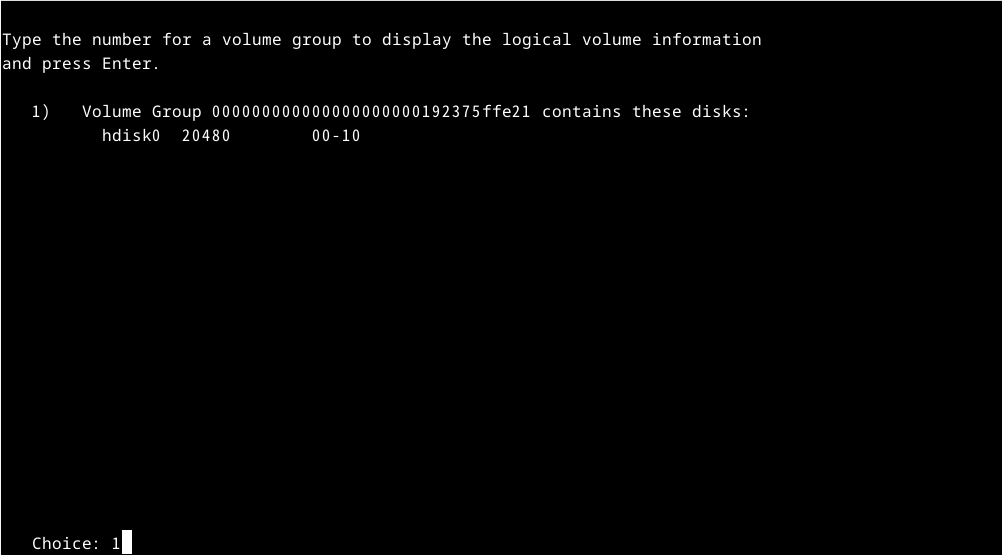](https://osslab.tw/uploads/images/gallery/2024-09/aix-vm-13.png) Type 1 [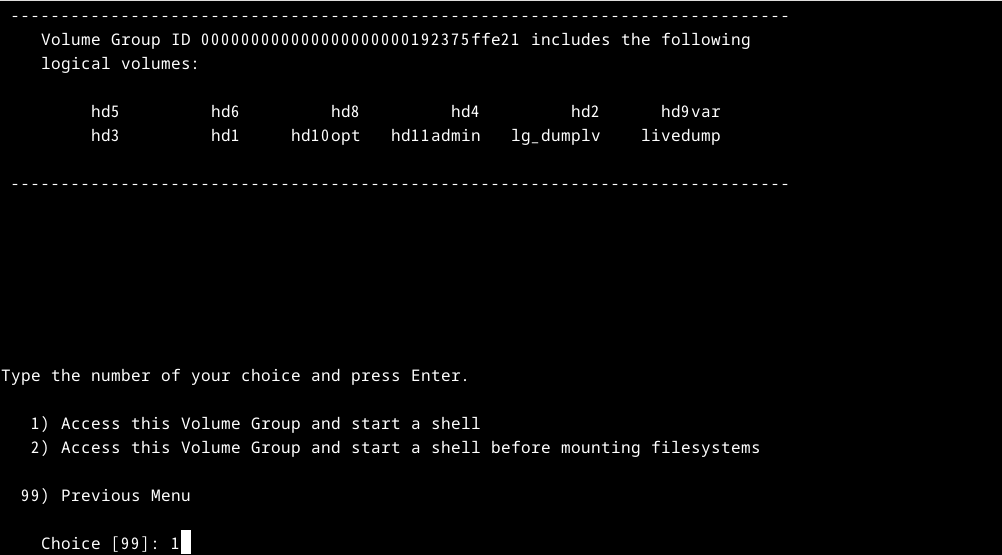](https://osslab.tw/uploads/images/gallery/2024-09/aix-vm-14.png) 輸入修復開機指令 [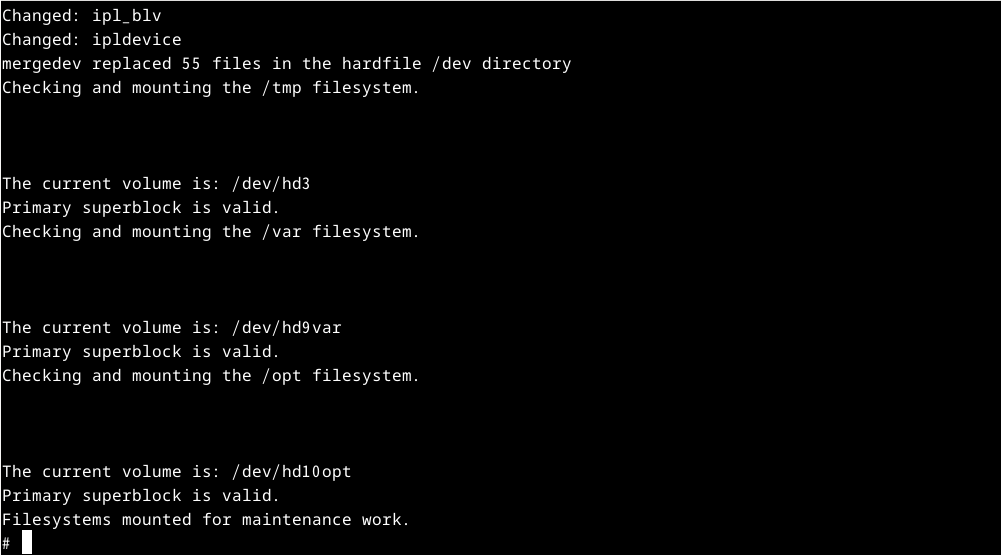](https://osslab.tw/uploads/images/gallery/2024-09/aix-vm-15.png) Fix boot issue ```bash cd /sbin/helpers/jfs2 mv fsck64 fsck64.old ln -s fsck fsck64 mv logredo64 logredo64.old ln -s logredo logredo64 sync;sync; halt ``` #### First boot from hdisk ```bash cd aix72VM qemu-system-ppc64 -cpu POWER8 \ -machine pseries -m 4096 -serial stdio \ -drive file=hdisk0.qcow2,if=none,id=drive-virtio-disk0 \ -device virtio-scsi-pci,id=scsi \ -device scsi-hd,drive=drive-virtio-disk0 \ -cdrom $PWD/AIX72.iso \ -prom-env "boot-command=boot hdisk:" \ -prom-env "input-device=/vdevice/vty@71000000" \ -prom-env "output-device=/vdevice/vty@71000000" ``` Type vt100 [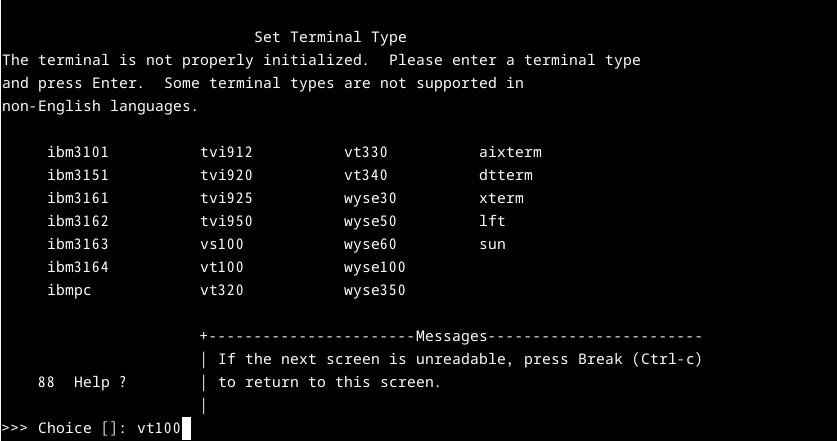](https://osslab.tw/uploads/images/gallery/2024-09/aix-vm-16.png) Select: Accept License Agreements > Tips: 如果這裡的畫面出現沒有對齊的情況,且影響到後續的操作。按下 Ctrl + C 先中斷離開,將終端機的字形調更小,然後再重新執行步驟。 [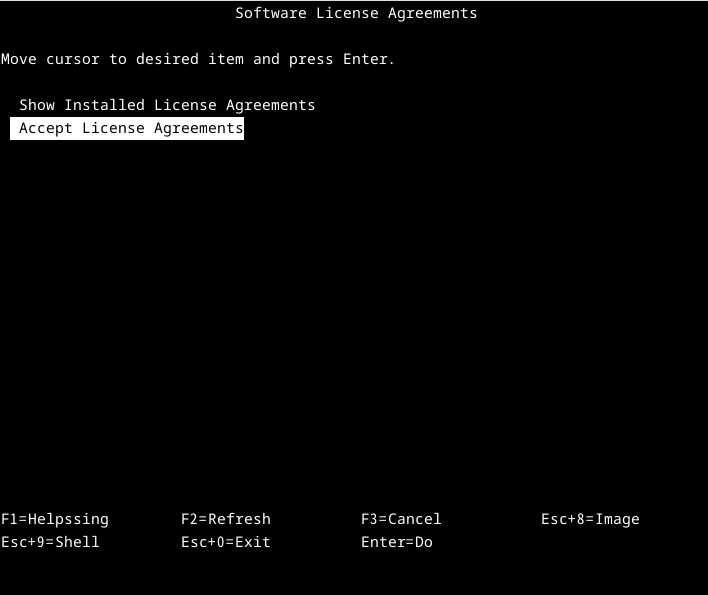](https://osslab.tw/uploads/images/gallery/2024-09/aix-vm-17.png) Select: Accept Software Maintenance Terms and Conditions [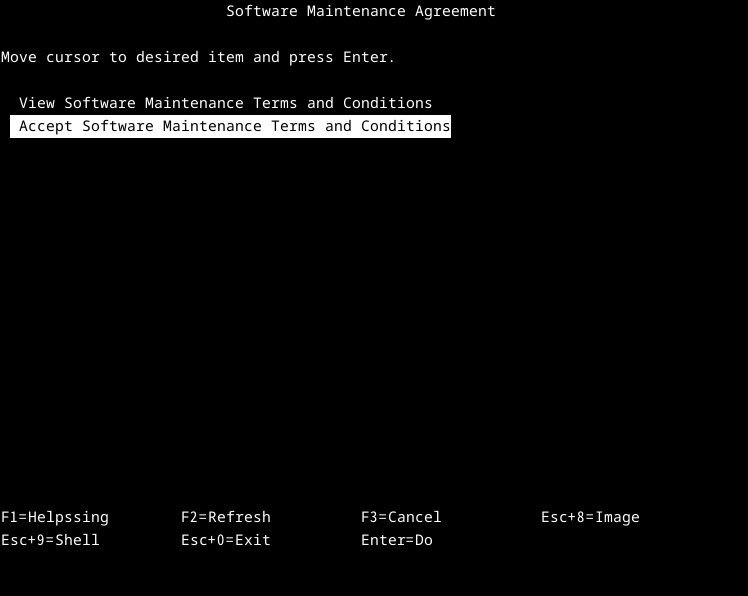](https://osslab.tw/uploads/images/gallery/2024-09/aix-vm-18.png) Select: Set root Password > Tip: 設定完密碼後,最後要選擇 Task Completed - Exit to Login。如果略過這,下次在開啟系統時,初始化的步驟仍會再出現。 [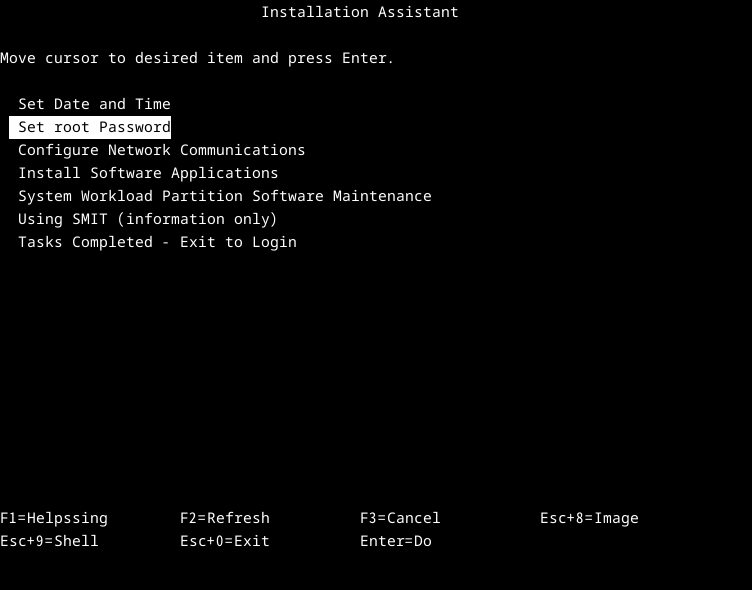](https://osslab.tw/uploads/images/gallery/2024-09/aix-vm-19.png) 用剛剛設定的 root 帳密登入 [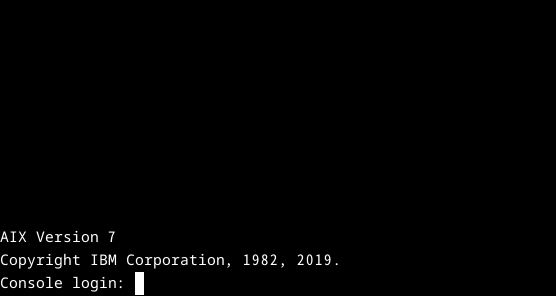](https://osslab.tw/uploads/images/gallery/2024-09/aix-vm-20.png) #### Post-tasks ##### - Disable some problematic services ```bash rmitab diagd rmitab rcnfs rmitab aso rmitab clcomd rmitab pfcdaemon stopsrc -s clcomd stopsrc -s pfcdaemon lsitab -a lssrc -a ``` ##### - Network setup On Linux) net\_tap.sh: ```bash BRIDGE=virbr0 NETWORK=192.168.99.0 NETMASK=255.255.255.0 GATEWAY=192.168.99.1 DHCPRANGE=192.168.99.2,192.168.99.50 TAP=tap0 sudo ip link add $BRIDGE type bridge sudo ip link set dev $BRIDGE up sudo ip addr add dev $BRIDGE $GATEWAY/$NETMASK sudo ip tuntap add $TAP mode tap sudo ip link set $TAP master $BRIDGE sudo ip link set up dev $TAP # Uncomment the following lines to enable the DHCP server #dns_cmd=( # dnsmasq # --strict-order # --except-interface=lo # --interface=$BRIDGE # --listen-address=$GATEWAY # --bind-interfaces # --dhcp-range=$DHCPRANGE # --conf-file="" # --pid-file=/var/run/qemu-dnsmasq-$BRIDGE.pid # --dhcp-leasefile=/var/run/qemu-dnsmasq-$BRIDGE.leases # --dhcp-no-override #) #echo ${dns_cmd[@]} | sudo bash ``` Run net\_tap.sh ```bash bash net_tap.sh ``` Allow access to internet ```bash sudo firewall-cmd --permanent --zone=public --add-interface=tap0 sudo firewall-cmd --permanent --add-masquerade sudo firewall-cmd --reload ``` Boot with network interface tap0 ```bash qemu-system-ppc64 -cpu POWER8 \ -machine pseries -m 4096 -serial mon:stdio \ -drive file=hdisk0.qcow2,if=none,id=drive-virtio-disk0 \ -device virtio-scsi-pci,id=scsi \ -device scsi-hd,drive=drive-virtio-disk0 \ -cdrom $PWD/AIX72.iso \ -net nic -net tap,script=no,ifname=tap0 \ -prom-env "boot-command=boot disk:" \ -nographic ``` On AIX) ```bash # Check the network interface lsdev -Cc if lsdev -Cc adapter # Set the ip chdev -l en0 -a netaddr=192.168.99.100 -a netmask=255.255.255.0 -a state=up route add 0 192.168.99.1 # Alternatively, using the following command instead /usr/sbin/mktcpip -h'aixvm' -a'192.168.99.100' -m'255.255.255.0' -i'en0' -g'192.168.99.1' -A'no' -t'N/A' echo "nameserver 1.1.1.1" > /etc/resolv.conf ``` ##### - Increase the filesystem size ```bash lsdev -Cc disk lscfg -vl hdisk0 chfs -a size=+1024M /home chfs -a size=+2048M /opt chfs -a size=+512M /tmp chfs -a size=+2048M /usr chfs -a size=+1024M /var ``` ##### - Install OpenSSH ```bash mount -v cdrfs -o ro /dev/cd0 /mnt mkdir /tmp/ssh_install cd /mnt/installp/ppc cp openssh* /tmp/ssh_install cd /tmp/ssh_install installp -acgXYd . openssh.base openssh.license openssh.man.en_US openssh.msg.en_US lssrc -s sshd ``` ##### - Fix the RPM issue > error: cannot open Packages index using db4 - Invalid argument (22) > error: cannot open Packages database in /opt/freeware/packages > error: db4 error(22) from dbenv->open: Invalid argument Solution: `fixrpm.sh` ```bash #!/usr/bin/ksh cd /opt/freeware rm -f *.rpm.packages.tar tar -chvf `date +"%d%m%Y"`.rpm.packages.tar packages rm -f /opt/freeware/packages/__* /usr/bin/rpm --rebuilddb exit 0 ``` Edit /etc/initab, insert the line after the rctcpip ``` rctcpip:23456789:wait:/etc/rc.tcpip > /dev/console 2>&1 # Start TCP/IP daemons fixrpm:23456789:once:/fixrpm.sh > /dev/null 2>&1 # Added by Alang ``` ##### - Install AIX Toolbox Download the files - dnf\_aixtoolbox.sh : [https://public.dhe.ibm.com/aix/freeSoftware/aixtoolbox/ezinstall/ppc/dnf\_aixtoolbox.sh](https://public.dhe.ibm.com/aix/freeSoftware/aixtoolbox/ezinstall/ppc/dnf_aixtoolbox.sh) - openssl-1.1.2.2000.tar.Z : [https://www.ibm.com/resources/mrs/assets?source=aixbp&S\_PKG=openssl](https://www.ibm.com/resources/mrs/assets?source=aixbp&S_PKG=openssl) ```bash cd /home/worktmp uncompress openssl-1.1.2.2000.tar.Z tar -xvf openssl-1.1.2.2000.tar cd openssl-1.1.2.2000 installp -qaXFY -d . openssl.base openssl.license openssl.man.en_US openssl version ``` ```bash cd /home/worktmp rpm --rebuilddb ksh dnf_aixtoolbox.sh -y /opt/freeware/bin/dnf update /opt/freeware/bin/dnf install bash ``` ##### - Optional tasks > Custom the prompt, create the profile `/.profile` ``` PS1="`whoami`@`hostname -s`:"'${PWD##*/}> ' ``` > Timezone smitty > System Environments > Change/Show Date and Time > Change Time Zone Using System ```bash echo $TZ ``` > The ordering of certain name resolution services > 修復 ping 本地主機名時會回應遲鈍問題。 Edit: `/etc/netsvc.conf` ``` hosts = local, bind4 ``` > Set the environment variables Edit: `/etc/environment` ``` # Fix for not properly displaying with smitty on the tmux TERM=xterm ``` #### 其他管理工作 ##### - 掛載 CD ISO 檔 修改qemu 啟動參數 `-cdrom /path/to/your-cd.iso` ```bash qemu-system-ppc64 -cpu POWER8 \ -machine pseries -m 4096 -serial mon:stdio \ -drive file=hdisk0.qcow2,if=none,id=drive-virtio-disk0 \ -device virtio-scsi-pci,id=scsi \ -device scsi-hd,drive=drive-virtio-disk0 \ -cdrom $PWD/AIX72.iso \ -net nic -net tap,script=no,ifname=tap0 \ -prom-env "boot-command=boot disk:" \ -nographic ``` AIX 掛載指令 ```bash mount -v cdrfs -o ro /dev/cd0 /mnt ``` ##### - 增加第2顆虛擬硬碟 在 Linux 主機:新增 5G 虛擬磁碟 `hdisk1.qcow2` ```bash cd aix72VM qemu-img create -f qcow2 hdisk1.qcow2 5G ``` 修改啟動指令,新增兩行參數 > 注意:之後如有變更參數的 disk id 名稱,啟動後 AIX 內的 hdisk 編號也會變動。 ``` -drive file=hdisk1.qcow2,if=none,id=drive-virtio-disk1 \ -device scsi-hd,drive=drive-virtio-disk1 \ ``` 在 AIX 主機:檢視硬碟 hdisk1 ``` root@aixvm:> lspv hdisk0 00000000375ffb46 rootvg active hdisk1 00000000fdb40f0f rootvg active root@aixvm:> lsdev -Cc disk hdisk0 Available 00-10 MPIO Other Virtio SCSI Disk Drive hdisk1 Available 00-10 MPIO Other Virtio SCSI Disk Drive root@aixvm:> lsmpio -q Device Vendor Id Product Id Size Volume Name --------------------------------------------------------------------------------- hdisk0 QEMU QEMU HARDDISK 20.00GiB - hdisk1 QEMU QEMU HARDDISK 20.00GiB - root@aixvm:> lspv -u hdisk0 00000000375ffb46 rootvg active 33130drive-virtio-disk00DQEMU HARDDISK04QEMUvrtscsi 8eca6bf6-b924-0872-c039-8cb2a62de21a hdisk1 00000000fdb40f0f rootvg active 33130drive-virtio-disk10DQEMU HARDDISK04QEMUvrtscsi c618c61a-8c74-19e4-6cfa-beae464aaf14 ``` ##### - 增加更多 vCPU 預設 QEMU 只有 1 vCPU,要改善 AIX 的效能,可以視硬體等級增加更多 vCPU。 `qemu-system-ppc64` 啟動參數加上 ``` -nographic -smp 2,sockets=2,cores=1,threads=1 ``` ##### - 增加虛擬網卡裝置 `qemu-system-ppc64` 啟動參數設置兩個虛擬網卡 ``` -net nic \ -net nic \ -net tap,script=no,ifname=tap0 \ ``` 如果要榜定 mac addr. ``` -net nic,macaddr=56:44:45:30:31:31 \ -net nic,macaddr=56:44:45:30:31:32 \ -net tap,script=no,ifname=tap0 \ ``` ##### - 設定 CPU 類型 POWER 8 ``` -cpu POWER8 -machine pseries ``` POWER 9 ``` -cpu POWER9 -machine pseries,ic-mode=xics ``` ##### - 完整啟動參數 ```bash qemu-system-ppc64 -cpu POWER8 \ -machine pseries -m 4096 -serial mon:stdio \ -cdrom $PWD/AIX72.iso \ -device virtio-scsi-pci,id=scsi \ -drive file=hdisk0.qcow2,if=none,id=drive-virtio-disk0 \ -device scsi-hd,drive=drive-virtio-disk0 \ -drive file=hdisk1.qcow2,if=none,id=drive-virtio-disk1 \ -device scsi-hd,drive=drive-virtio-disk1 \ -net nic -net tap,script=no,ifname=tap0 \ -prom-env "boot-command=boot disk:" \ -nographic -smp 2,sockets=2,cores=1,threads=1 ``` ##### - NFS Share - NFS Server: Fedora VM (192.168.99.1) - NFS Client: AIX VM (192.168.99.100) NFS Server on Fedora VM) ```bash # Install the dependencies packages [cobra@fedora-vm ~]$ rpm -qa | grep nfs libnfsidmap-2.7.1-0.fc40.x86_64 sssd-nfs-idmap-2.9.5-1.fc40.x86_64 nfs-utils-2.7.1-0.fc40.x86_64 # Configure the firewall sudo firewall-cmd --permanent --add-service=nfs sudo firewall-cmd --permanent --add-service=mountd sudo firewall-cmd --permanent --add-service=rpc-bind sudo firewall-cmd --reload ``` Edit `/etc/exports.d/aix_nfs.exports` ``` /dataVol/aix_nfs 192.168.99.100(rw,sync,no_root_squash) ``` Startup the service ```bash [cobra@fedora-vm ~]$ sudo systemctl enable nfs-server --now ``` NFS Client on AIX VM) - IP: 192.168.99.1 這是 AIX 的 Gateway,同時也是外層 Fedora 的 IP。 ```bash showmount -e 192.168.99.1 mkdir /mnt/nfs mount 192.168.99.1:/dataVol/aix_nfs /mnt/nfs ``` #### 系統效能 ##### 實測數據 1. AIX 更新: 從 7200-05-06-2320 至 7200-05-08-2420,更新檔約 8 GB,共花費時間 2.5 小時。 2. AIX 更新: 從 7200-04-00-0000 至 7200-05-06-2320,更新檔約 7.9GB,總花費時間 5 小時 10 分。 3. DB2 Server: 安裝 v11.1 花費 51 分鐘,安裝 FP 7 花費 1.5 小時。 ##### I/O 優化 1. AIX 分配 4GB RAM 時,外層 Fedora Linux 建議 12 GB以上 RAM,可避免 Fedora Linux 使用 SWAP memory,以致影響 AIX 的 I/O 效能。 2. 如果 Fedora Linux 啟用多個 AIX VMs,Fedora Linux 記憶體配置需要適時地增加。 3. 外部電腦要與 AIX 進行檔案交換時,可使用 scp 指令。盡可能不要使用 Fedora Linux 做中繼,因為 Fedora Linux 同時間要執行寫入與讀取,會影響檔案傳輸的效率。 ##### 磁區建議最小空間分配 - / : 1GB - /usr : 5GB - /var : 1.5GB - /tmp : 1GB - /opt : 7GB (For DB2 Server) #### 遷移現有的 AIX 系統 - [遷移現有 AIX 7.2 系統至 QEMU VM](https://github.com/GongCun/aix-qemu-how-to/blob/master/aix-qemu-how-to.org) - [AIX\_QEMU\_blog.pdf](https://osslab.tw/attachments/90) #### 已知問題 1. 執行 `lslpp -L` 時偶爾會卡住,可以改用 `-l` 取代或重啟 AIX VM 試試。 2. 使用 DB2 Server 11.1 時,在安裝 FixPack 與建立 Instance 時會發生錯誤,需要使用 db2chgpath 指令修復。 3. 如果 AIX 頻繁增刪檔案,外層的 VM disk hdisk0.qcow2 檔案會不斷增大,即使 AIX 刪除了所有檔案,hdisk0.qcow2 檔案也不會自動縮小。 - 解決方法:關閉 AIX VM,在 Host OS 使用指令 `virt-sparsify hdisk0.qcow2 hdisk0-shrink.qcow2` ,然後使用 hdisk0-shrink.qcow2 當作 AIX VM disk。 #### References - [AIX on qemu-system-ppc64](https://github.com/mjsamp/AIX-on-qemu-ppc64) - [Run AIX 7.2 on x86 with QEMU – Kwakou SysAdmin](https://kwakousys.wordpress.com/2020/09/06/run-aix-7-2-on-x86-with-qemu/) - [Qemu模拟器运行AIX 7.2 系统 - 运维小菜鸟 - 博客园 (cnblogs.com)](https://www.cnblogs.com/xueyixue/p/13750847.html) - [Run your AIX VM on x86 using KVM and QEMU (ibm.com)](https://community.ibm.com/community/user/powerdeveloper/blogs/hugo-b/2024/01/17/aix-virtualization-x86-kvm-qemu) - [qemu7模拟安装aix72,详细过程,附带镜像\_aix 7.2版本qcow2格式镜像下载-CSDN博客](https://blog.csdn.net/qq_41847721/article/details/127361453) - [AIX 7.2 虚拟机安装 - 杰哥的{运维,编程,调板子}小笔记 (jia.je)](https://jia.je/system/2023/04/09/aix/) - [AIX for System Administrators: DEVOPS - QEMU (aix4admins.blogspot.com)](https://aix4admins.blogspot.com/2020/04/qemu-aix-on-x86-qemu-quick-emulator-is.html) - YT: [AIX 7.2 installation in QEMU - YouTube](https://www.youtube.com/watch?v=nQMFl1WODI0) - YT: [Install AIX on QEMU using virsh and virt-manager tools - YouTube](https://www.youtube.com/watch?v=EFftKpKCj_Y) - YT: [Updates on Install AIX and run PowerHA using virsh and virt-manager - YouTube](https://www.youtube.com/watch?v=_zZIwsy8JLs) - [libvirt: QEMU command-line passthrough](https://www.libvirt.org/kbase/qemu-passthrough-security.html) - [Install AIX on x86 using QEMU](http://emmanuel.iffly.free.fr/doku.php?id=aix:aix_simulator_x86_qemu)