DNS
DNS Server
Tutorials
DNS over HTTPS (DoH)
Secure DNS
- DNS settings to avoid email spoofing and phishing for unused domain - nixCraft (cyberciti.biz)
- How to test and validate DNSSEC using dig command line - nixCraft (cyberciti.biz)
Adguard Home
NSD
- NSD Tutorial Updated for 2024: Now With Zone Transfers! - LowEndBox
- How To Use NSD, an Authoritative-Only DNS Server, on Ubuntu 14.04 | DigitalOcean
Pi-hole
Pi-hole - A DNS-based advertisement blocker
- Pi-hole – Network-wide Ad Blocking
- How to Set Up Pi-hole to Get an Ad-free Life
- 7 Things I Wish I Knew Before Running a Pi-hole
docker-compose.yaml :
- 網頁登入密碼:
FTLCONF_webserver_api_password: 'XXXX'
# More info at https://github.com/pi-hole/docker-pi-hole/ and https://docs.pi-hole.net/
services:
  pihole:
    container_name: pihole
    image: pihole/pihole:latest
    ports:
      # DNS Ports
      - "53:53/tcp"
      - "53:53/udp"
      # Default HTTP Port
      - "80:80/tcp"
      # Default HTTPs Port. FTL will generate a self-signed certificate
      - "443:443/tcp"
      # Uncomment the line below if you are using Pi-hole as your DHCP server
      #- "67:67/udp"
      # Uncomment the line below if you are using Pi-hole as your NTP server
      #- "123:123/udp"
    environment:
      # Set the appropriate timezone for your location (https://en.wikipedia.org/wiki/List_of_tz_database_time_zones), e.g:
      TZ: 'Asia/Taipei'
      # Set a password to access the web interface. Not setting one will result in a random password being assigned
      FTLCONF_webserver_api_password: 'correct horse battery staple'
      # If using Docker's default `bridge` network setting the dns listening mode should be set to 'ALL'
      FTLCONF_dns_listeningMode: 'ALL'
    # Volumes store your data between container upgrades
    volumes:
      # For persisting Pi-hole's databases and common configuration file
      - './etc-pihole:/etc/pihole'
      # Uncomment the below if you have custom dnsmasq config files that you want to persist. Not needed for most starting fresh with Pi-hole v6. If you're upgrading from v5 you and have used this directory before, you should keep it enabled for the first v6 container start to allow for a complete migration. It can be removed afterwards. Needs environment variable FTLCONF_misc_etc_dnsmasq_d: 'true'
      #- './etc-dnsmasq.d:/etc/dnsmasq.d'
    cap_add:
      # See https://docs.pi-hole.net/docker/#note-on-capabilities
      # Required if you are using Pi-hole as your DHCP server, else not needed
      - NET_ADMIN
      # Required if you are using Pi-hole as your NTP client to be able to set the host's system time
      - SYS_TIME
      # Optional, if Pi-hole should get some more processing time
      - SYS_NICE
    restart: unless-stopped
Technitium
Self host a DNS server for privacy & security
- Technitium DNS Server | An Open Source DNS Server For Privacy & Security
- GitHub: https://github.com/TechnitiumSoftware/DnsServer
- Technitium: The Self-Hosted DNS Server You Should Run - YouTube
dig - DNS Lookup Utility
The dig is a powerful CLI to find out information about domains and IP addresses without using any 3rd party tools or websites.
01. What is the website’s IP address?
dig apple.com02. How do you identify the name servers(NS) associated with a domain?
dig NS apple.com +short
dig NS com. +short
03. Which eMail Servers(MX) are responsible for a domain?
dig MX apple.com +short04. Finding out the domain name associated with the IP address (reverse IP lookup)
dig -x 1.1.1.1 +short
dig -x 8.8.4.4 +short
05. Finding out the delegation path for any DNS zone (learn how DNS works)
dig apple.com +trace06. Finding out DNS answers from specific cache resolver (e.g. Cloudflare [1.1.1.1], Google DNS [8.8.8.8], IBM and so on for cyberciti.biz domain)
dig A cyberciti.biz @1.1.1.1 +short
dig A cyberciti.biz @8.8.8.8 +short
07. Finding out the cache expire time (TTL) for DNS
# AAAA is for IPv6
dig A www.cyberciti.biz +nocmd +noall +answer +ttlid
dig AAAA www.cyberciti.biz +nocmd +noall +answer +ttlid
08. Finding if a zone is synchronized with all authoritative name servers (look for serial number)
dig nixcraft.com +nssearch09. What is my public IPv4 or IPv6 address?
dig TXT o-o.myaddr.l.google.com @ns1.google.com +short
dig TXT ch whoami.cloudflare @1.0.0.1 +short
10. Getting help about the dig command
man dig11. Finding out the IP address associated the domain name.
dig yahoo.com +short | sort -V
What's DNS
Tutorials
- What is Round-Robin DNS? - GreenCloud
- What is a DNS Amplification Attack? - GreenCloud
- DNS Failover: How does it work? - GreenCloud
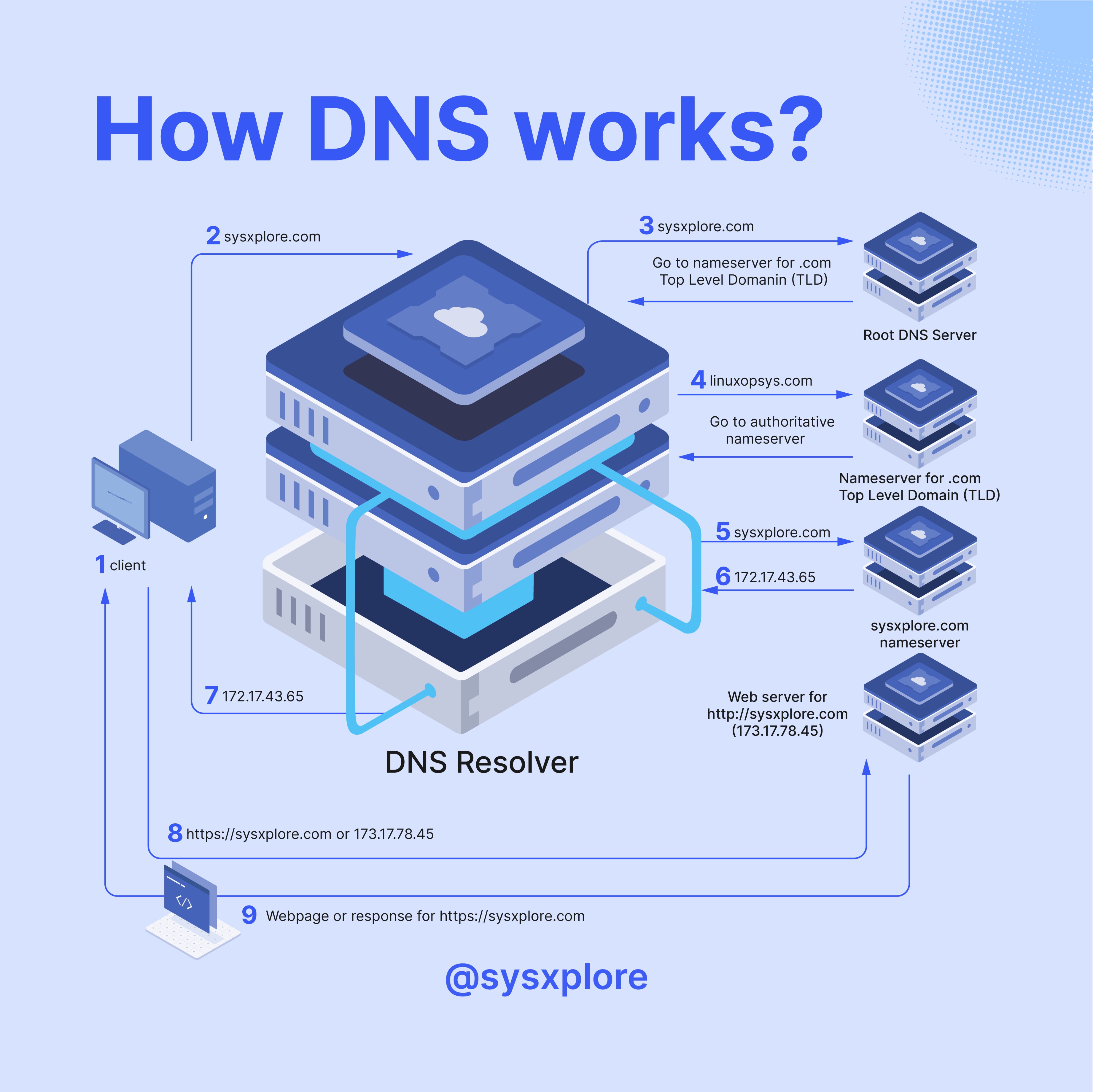
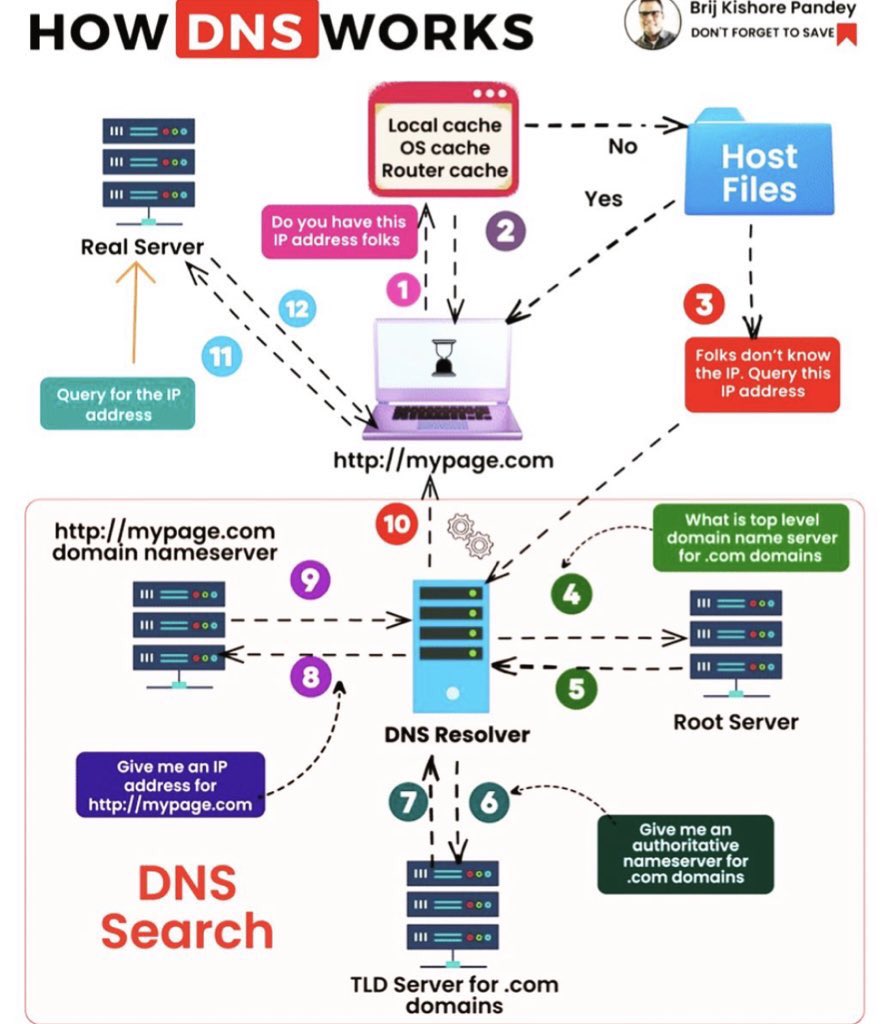
How DNS Works
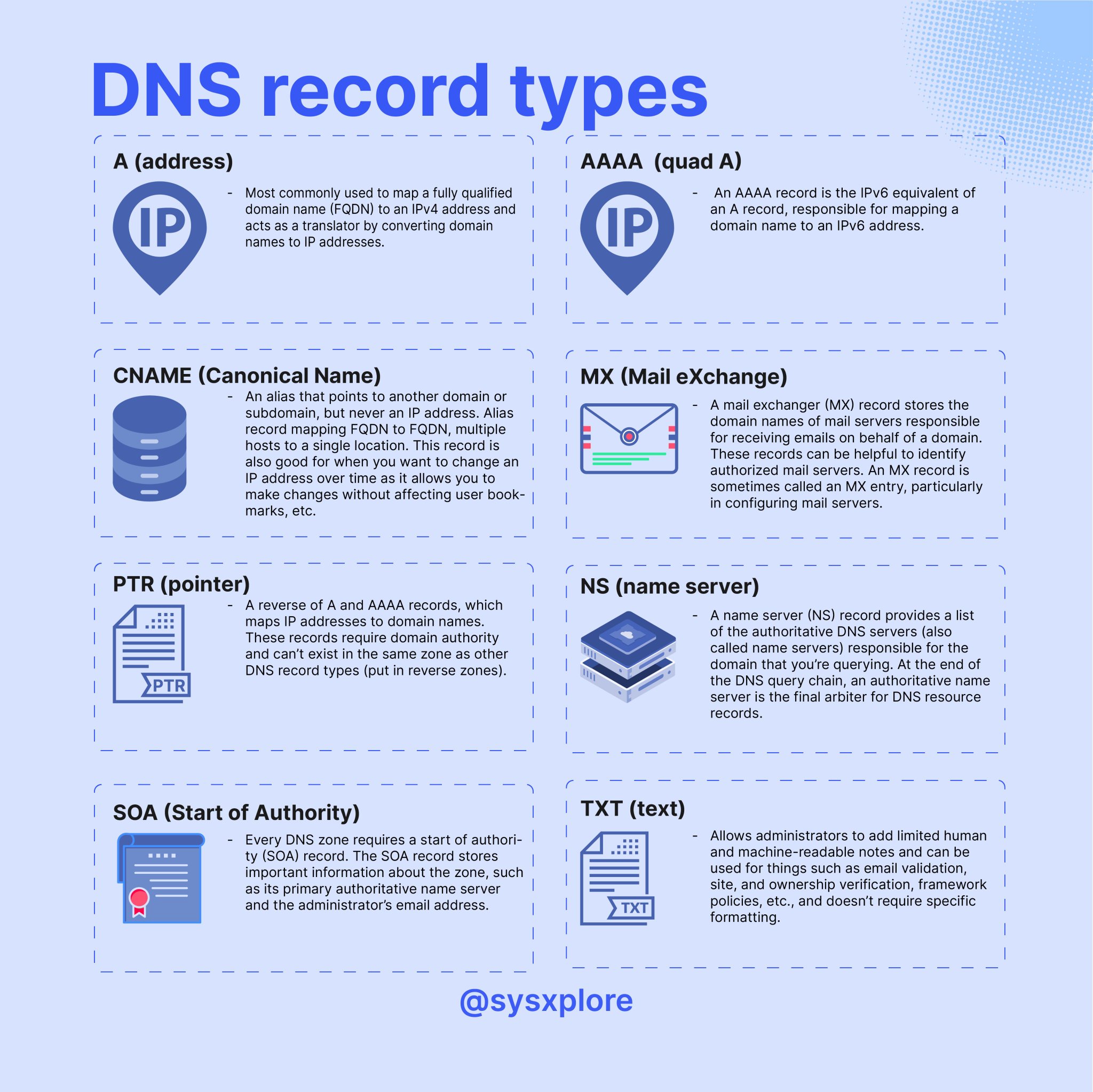
DNS Record Type
DNS Online Tools
DNS Check
SPF/DKIM/DMARC Check
WHOIS Search
Domain Tools
- tldx - 以關鍵字搜尋可用網域名稱