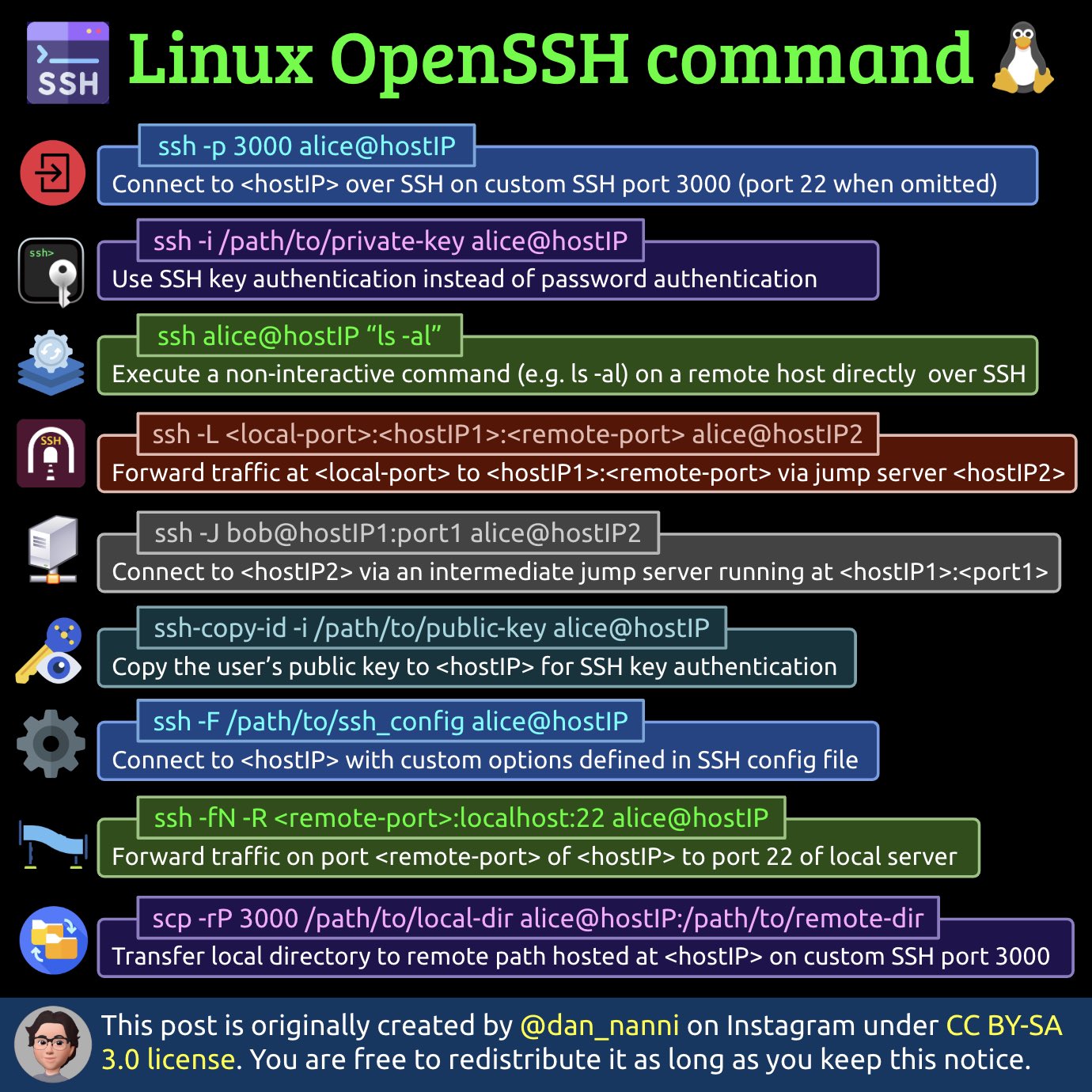
ssh
測試驗證服務的設定
# 重啟 sshd 前先驗證設定
# 沒有任何內容輸出,表示設定沒有錯誤
# 指令必須使用絕對路徑
/usr/sbin/sshd -t

# 詳細驗證模式
# 可檢視詳細設定檔參數
/usr/sbin/sshd -T
檢視連線參數的設定
$ ssh -F ~/.ssh/config -G remote-host-name
user root
hostname 173.82.136.138
port 22
addressfamily any
batchmode no
canonicalizefallbacklocal yes
canonicalizehostname false
challengeresponseauthentication yes
checkhostip yes
compression no
...
~/.ssh/config
Host my-k8s
    HostName 192.168.31.81
    User alang
    Port 22
    IdentityFile ~/.ssh/alang@mint_rsa
    LocalForward 11000 localhost:11000
自動套用金鑰檔
- %r : remote username
- %h : remote hostname
Host *
    IdentityFile ~/.ssh/id_%r@%h
    IdentityFile ~/.ssh/id_ed25519
    IdentityFile ~/.ssh/id_rsa
建立金鑰檔
mkdir -p $HOME/.ssh
chmod 0700 $HOME/.ssh
ssh-keygen -t rsa

# Specify 4096 bits (default 2048)
# Specify the filename of the key file
# (default $HOME/.ssh/id_rsa is private key, $HOME/.ssh/id_rsa.pub is public key)
ssh-keygen -t rsa -b 4096 -f ~/.ssh/my-vps-cloud.key -C "My Comment"
以金鑰方式連線
# By custom key file
ssh -i /path/to/the-key-file root@hostname

# By default key file ~/.ssh/id_rsa
ssh root@hostname
複製公鑰檔至遠端主機上
指令一:從主機 A 上執行
ssh-copy-id user@remote-host-ip
or
ssh-copy-id -f -i $HOME/.ssh/id_rsa.pub user@remote-host-ip
指令二:從主機 A 上執行
cat ~/.ssh/id_rsa.pub | ssh user@remote-host-ip "mkdir -p ~/.ssh && cat >> ~/.ssh/authorized_keys"從主機 B 上執行,以手動方式上傳 id_rsa.pub:
cd ~/.ssh
mv id_rsa.pub host-A-hostname.pub
cat host-A-hostname.pub >> authorized_keys
chmod 0700 ~/.ssh
chmod 0640 authorized_keys
NOTE:
如果 .ssh 目錄裡已經有 authorized_keys 檔案,可以另存一個檔名加上 2,例如 authorized_keys2
測試連線: 從主機 A 上執行
ssh <remote-userB>@<remote-hostB-name>不需要輸入密碼就可以登入。
# Allow login from 192.168.2.0/24 subnet but not from 192.168.2.25
from="!192.168.2.25,192.168.2.*" ssh-ed25519 my_random_pub_key_here vivek@nixcraft
# Allow login from *.sweet.home but not from router.sweet.home
from="!router.sweet.home,*.sweet.home" ssh-ed25519 my_random_pub_key_here vivek@nixcraft
公鑰遺失,重新產生
# Generate a public key from a private key
ssh-keygen -y -f ~/.ssh/id_rsa > ~/.ssh/id_rsa.pub

# View the fingerprint of the key
# NOTE: If the private key and the public key is key pair, the fingerprint of them are the same.
ssh-keygen -l -f ~/.ssh/id_rsa.pub
ssh-keygen -l -f ~/.ssh/id_rsa
指令自動補全
自動搜尋 ~/.ssh/config 的連線資訊
編輯 ~/.bashrc
complete -o default -o nospace -F _ssh sshsshpass
整合 shell 做自動化的指令
Install sshpass
sudo apt-get install sshpass     #[On Debian, Ubuntu and Mint]
sudo yum install sshpass         #[On RHEL/CentOS/Fedora and Rocky Linux/AlmaLinux]
sudo emerge -a sys-apps/sshpass  #[On Gentoo Linux]
sudo pacman -S sshpass           #[On Arch Linux]
sudo zypper install sshpass      #[On OpenSUSE]
1. ssh 執行指令
# Use the -p (this is considered the least secure choice and shouldn't be used)
sshpass -p !4u2tryhack ssh -o StrictHostKeyChecking=no username@host.example.com hostname

# Use the -f option (the password should be the first line of the filename)
echo '!4u2tryhack' >pass_file
chmod 0400 pass_file
sshpass -f pass_file ssh -o StrictHostKeyChecking=no username@host.example.com hostname

# Use the -e option (the password should be the first line of the filename)
SSHPASS='!4u2tryhack' sshpass -e ssh -o StrictHostKeyChecking=no username@host.example.com hostname
2. 整合 rsync
# Use -e
SSHPASS='!4u2tryhack' rsync --rsh="sshpass -e ssh -l username" /custom/ host.example.com:/opt/custom/

# Use -f
rsync --rsh="sshpass -f pass_file ssh -l username" /custom/ host.example.com:/opt/custom/
3. 整合 scp
scp -r /var/www/html/example.com --rsh="sshpass -f pass_file ssh -l user" host.example.com:/var/www/html

# copying a file to a remote server
sshpass -p "REMOTE_USER_PASSWORD" scp linuxshelltips_v2.txt ubuntu@18.118.208.79:/home/ubuntu/
# copy a directory
sshpass -p "REMOTE_USER_PASSWORD" scp -r Some_Directory/ ubuntu@18.118.208.79:/home/ubuntu/
4. With a GPG-encrypted file
echo '!4u2tryhack' > .sshpasswd
gpg -c .sshpasswd
rm .sshpasswd
gpg -d -q .sshpassword.gpg > pass_file; sshpass -f pass_file ssh user@srv1.example.com hostname
整合 tar 做異機備份與檔案傳輸
NOTE:
用 tar 做檔案複製,可以保留 Symbolic links, special devices, sockets, named pipes 等等的特殊類型檔案。
Sudo: Please note that you may get an error that read as follows with ssh command when using with sudo or any other command that needs a pseudo-terminal allocation:
ssh user@box tar czf - /dir1/ > /destination/file.tar.gz
ssh user@box 'cd /dir1/ && tar -cf - file | gzip -9' >file.tar.gz

# backups /wwwdata directory to dumpserver.nixcraft.in host over ssh session
tar zcvf - /wwwdata | ssh user@dumpserver.nixcraft.in "cat > /backup/wwwdata.tar.gz"

# With gpg
tar zcf - /data2/ | gpg -e | ssh vivek@nas03 'cat - > data2-dd-mm-yyyy.tar.gz.gpg'

# With sudo
tar zcvf - /wwwdata | ssh -t vivek@192.168.1.201 "sudo cat > /backup/wwwdata.tar.gz"

# Copying from the remote machine (server1.cyberciti.biz) to local system
cd /path/local/dir/
ssh vivek@server1.cyberciti.biz 'tar zcf - /some/dir' | tar zxf -

# With dd
dd if=/dev/sdvf | ssh backupimg@vpc-aws-mumbai-backup-001 'dd of=prod-disk-hostname-sdvf-dd-mm-yyyy.img'
# To restore a local drive from the image on the server
ssh backupimg@vpc-aws-mumbai-backup-001 'dd if=prod-disk-hostname-sdvf-dd-mm-yyyy.img' | dd of=/dev/sdvf
OTP and Two-Factor Authentication
Google Authenticator
- Setting up multi-factor authentication on Linux systems
- How to Setup Two-Factor Authentication (Google Authenticator) for SSH Logins
- How To Setup Multi-Factor Authentication For SSH In Linux
- Enabling 2FA on RHEL 8 using Google Authenticator
- Configure SSH Two factor (2FA) Authentication on CentOS 8 / RHEL 8
- Use oathtool Linux command line for 2 step verification (2FA)
- How to Set Up SSH to Use Two-Factor Authentication
- How to set up 2FA for Linux desktop logins for added security
USB Thumb Drive / Memory Card
YubiKey
允許可遠端登入的帳號
AllowUsers joe root@192.168.1.32 axer@163.* axer@120.109.* axer@2001:288:5400:*

# OR
AllowGroups ssh-users
踢出(Kick Out) 遠端登入帳號
方法一:
root@localhost:~# who -u
abhishek pts/0        2021-04-05 09:25 00:01       31970 (223.180.180.107)
prakash  pts/1        2021-04-05 09:26   .         32004 (223.180.180.107)
root     pts/2        2021-04-05 09:26   .         32039 (223.180.180.107)

root@localhost:~# echo "Your session will end in 2 minutes. Save your work!" | write prakash pts/2

root@localhost:~#  kill -HUP 32004
方法二: 用 loginctl
loginctl terminate-user <user-name>從遠端一行指令修改密碼會顯示明碼
# add the option -t to have the password to be invisible.
ssh -t <username>@<remote-host-ip> passwd
從遠端執行指令
ssh user1@server1 'df -H'
ssh root@nas01 uname -mrs
ssh root@nas01 lsb_release -a
ssh sk@192.168.225.22 "uname -r ; lsb_release -a"

# Run sudo or su command
ssh -t user@hostname sudo command
ssh -t user@hostname 'sudo command1 arg1 arg2'
ssh user@nas01 su -c "/path/to/command1 arg1 arg2"
# RHEL/CentOS specific #
ssh user@nas01 su --session-command="/path/to/command1 arg1 arg2"
ssh vivek@nixcraft.home.server su --session-command="/sbin/service httpd restart"

# Running and executing multiple ssh command
cat > commands.txt
date
uptime
df -H

ssh user@server_name < commands.txt

# Run Local Scripts On Remote Systems
ssh sk@192.168.225.22 'bash -s' < my.sh
Sample: The multi-line command syntax
#!/bin/bash
_remote="ls.backup"
_user="vivek"

echo "Local system name: $HOSTNAME"
echo "Local date and time: $(date)"

echo
echo "*** Running commands on remote host named $_remote ***"
echo
ssh -T $_remote <<'EOL'
	now="$(date)"
	name="$HOSTNAME"
	up="$(uptime)"
	echo "Server name is $name"
	echo "Server date and time is $now"
	echo "Server uptime: $up"
	echo "Bye"
EOL
防止 Idle 狀態被終止連線
ssh 連線可能因為某些原因,例如防火牆,在一段時間沒有操作後,連線會被切斷,要避免這情形,可以透過 Server 端或者 Client 端,設定連線保持就可以解決。
方法一:在 Server 端編輯 /etc/ssh/sshd_config
ClientAliveInterval	300
ClientAliveCountMax	3
方法二:在 Client 端,要連線加上參數
ssh -o ServerAliveInterval=300 username@server_ip_address安全設定
停用不安全的密碼演算法
# Find out current encryption_algorithms supported
# From local
sshd -T | grep "\(ciphers\|macs\|kexalgorithms\)"
# Frome Remote
nmap --script "ssh2*" your.ssh.server.ip

# Verify the settings
sshd -t

# Reload the SSH
systemctl reload sshd

# Test
# From Remote
ssh -vv -oCiphers=aes128-cbc,3des-cbc,blowfish-cbc <server.ip>
ssh -vv -oMACs=hmac-md5 <server.ip>

# Find out what algorithms the ssh supports for
# See the section Ciphers, KexAlgorithms, MACs
man 5 sshd_config
For RHEL 8
/etc/sysconfig/sshd
# uncomment the line with the CRYPTO_POLICY= variable in /etc/sysconfig/sshd.
CRYPTO_POLICY=
/etc/ssh/sshd_config
# Fix for 'SSH Weak Algorithms Supported'
# Fix for 'SSH Weak MAC Algorithms Enabled'
# Fix for 'SSH Weak Key Exchange Algorithms Enabled'
# For RHEL8
Ciphers aes128-ctr,aes256-ctr
KexAlgorithms curve25519-sha256,ecdh-sha2-nistp256,ecdh-sha2-nistp384,ecdh-sha2-nistp521,diffie-hellman-group-exchange-sha256,diffie-hellman-group14-sha256,diffie-hellman-group16-sha512,diffie-hellman-group18-sha512
GSSAPIKexAlgorithms gss-group14-sha256-,gss-group16-sha512-,gss-nistp256-sha256-,gss-curve25519-sha256-
For RHEL 7
# Fix for 'SSH Weak Algorithms Supported'
# Fix for 'SSH Weak MAC Algorithms Enabled'
# Fix for 'SSH Weak Key Exchange Algorithms Enabled'
# For RHEL7
Ciphers aes128-ctr,aes192-ctr,aes256-ctr
KexAlgorithms curve25519-sha256,ecdh-sha2-nistp256,ecdh-sha2-nistp384,ecdh-sha2-nistp521,diffie-hellman-group-exchange-sha256,diffie-hellman-group14-sha256,diffie-hellman-group16-sha512,diffie-hellman-group18-sha512
For RHEL 6
/etc/ssh/sshd_config
# Fix for 'SSH Weak Algorithms Supported'
# Fix for 'SSH Weak MAC Algorithms Enabled'
# Fix for 'SSH Weak Key Exchange Algorithms Enabled'
# For RHEL6
Ciphers aes128-ctr,aes192-ctr,aes256-ctr
KexAlgorithms diffie-hellman-group-exchange-sha256
MACs hmac-sha1,hmac-ripemd160
For RHEL 5
# Fix for 'SSH Weak Algorithms Supported'
# Fix for 'SSH Weak MAC Algorithms Enabled'
# Fix for 'SSH Weak Key Exchange Algorithms Enabled'
# RHEL 5 doesn't support for KexAlgorithms
# For RHEL5
Ciphers aes128-ctr,aes192-ctr,aes256-ctr
MACs hmac-sha1,hmac-ripemd160
For AIX 7.1/7.2
# Fix for CVE-2023-48795
# NOTE: Restarting service is required for applying the changes
Ciphers aes128-ctr,aes192-ctr,aes256-ctr,aes128-gcm@openssh.com,aes256-gcm@openssh.com
MACs umac-64@openssh.com,umac-128@openssh.com,hmac-sha2-256,hmac-sha2-512
Port Knocking To Secure SSH
DenyHosts
SSHGuard
目錄權限
chmod 0700 ~/.ssh
chmod 600 ~/.ssh/id_rsa
chmod 600 ~/.ssh/id_rsa.pub
chmod 600 ~/.ssh/authorized_keys
chmod 600 ~/.ssh/known_hosts
chmod 600 ~/.ssh/config
登入root通知信
/root/.bashrc , /root/.profile
# Send an alert when someone logged on as Root
# Put the function into the .bashrc or .profile of Root home directory
Send_Alert() {
    ADMIN_EMAIL="sysadmin@example.com"
    SUBJECT="[ALERT]Root Access from $(who | cut -d'(' -f2 | cut -d')' -f1 | tail -1) to $(hostname -s)"
    echo "
Hostname: $(hostname -s)
Datetime: $(date +'%Y-%m-%d') $(date +'%T')

[More details - Show who is logged on]
$(who)

    " | mail -s "$SUBJECT" "$ADMIN_EMAIL"
}
Send_Alert
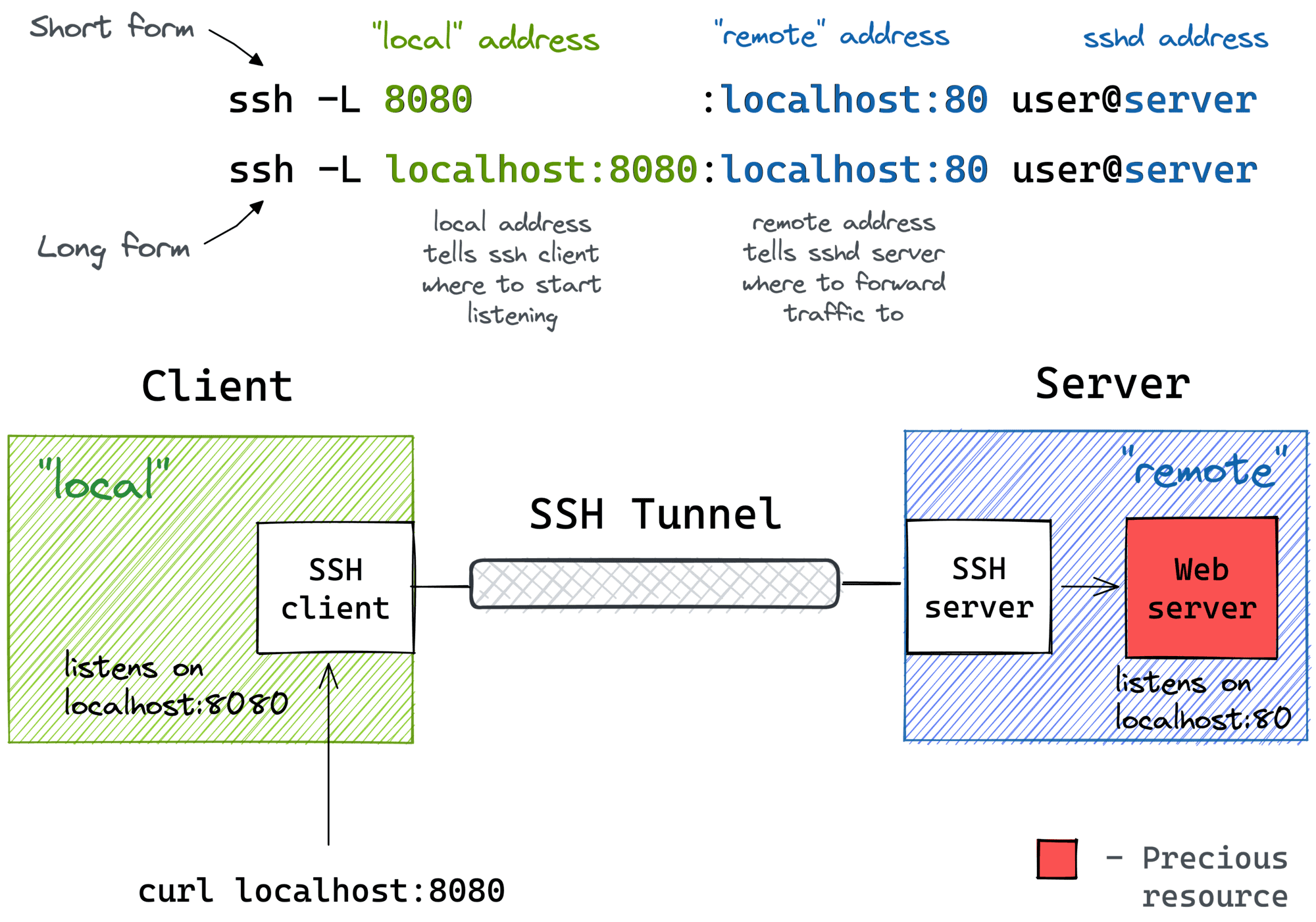
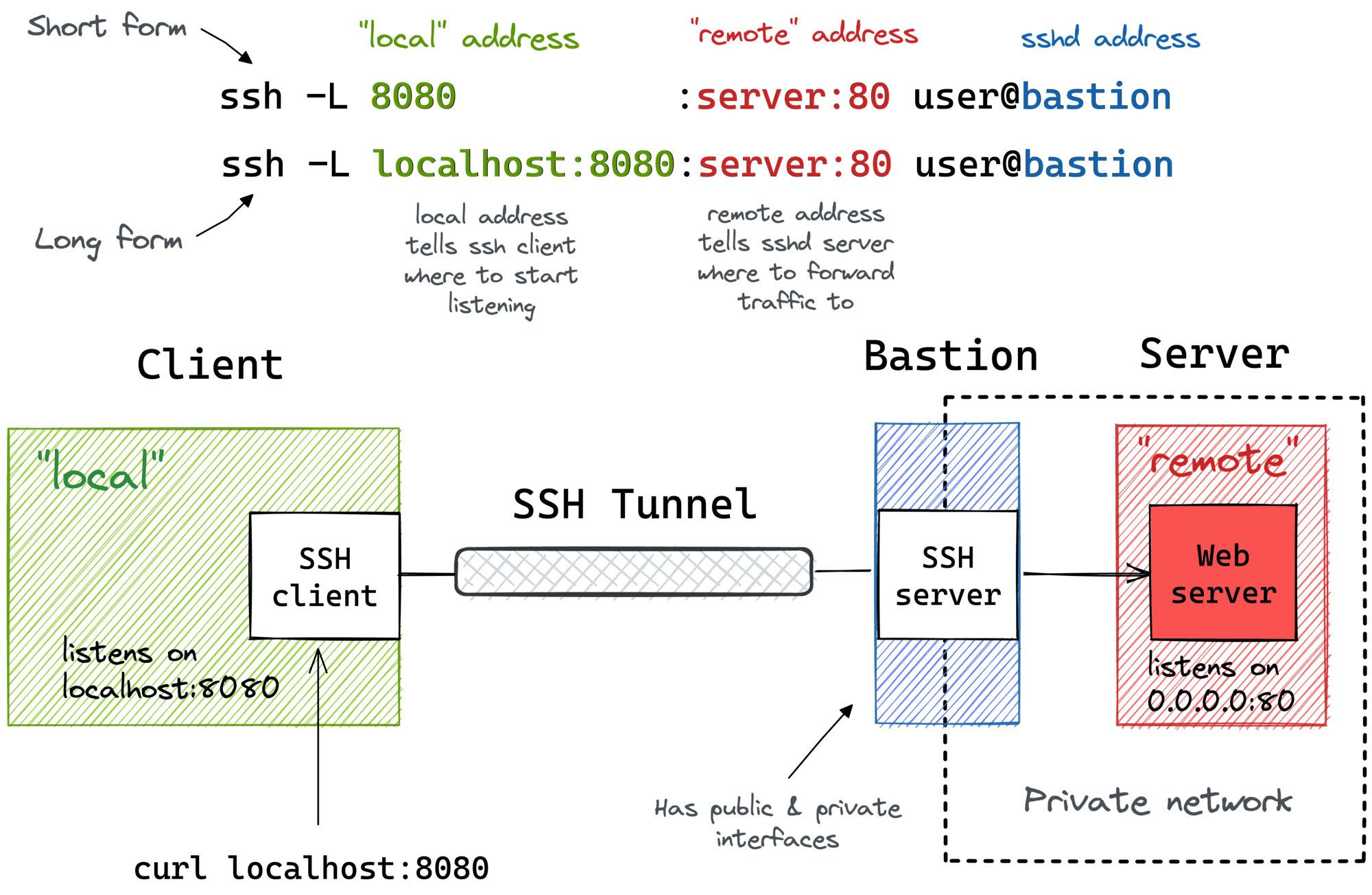
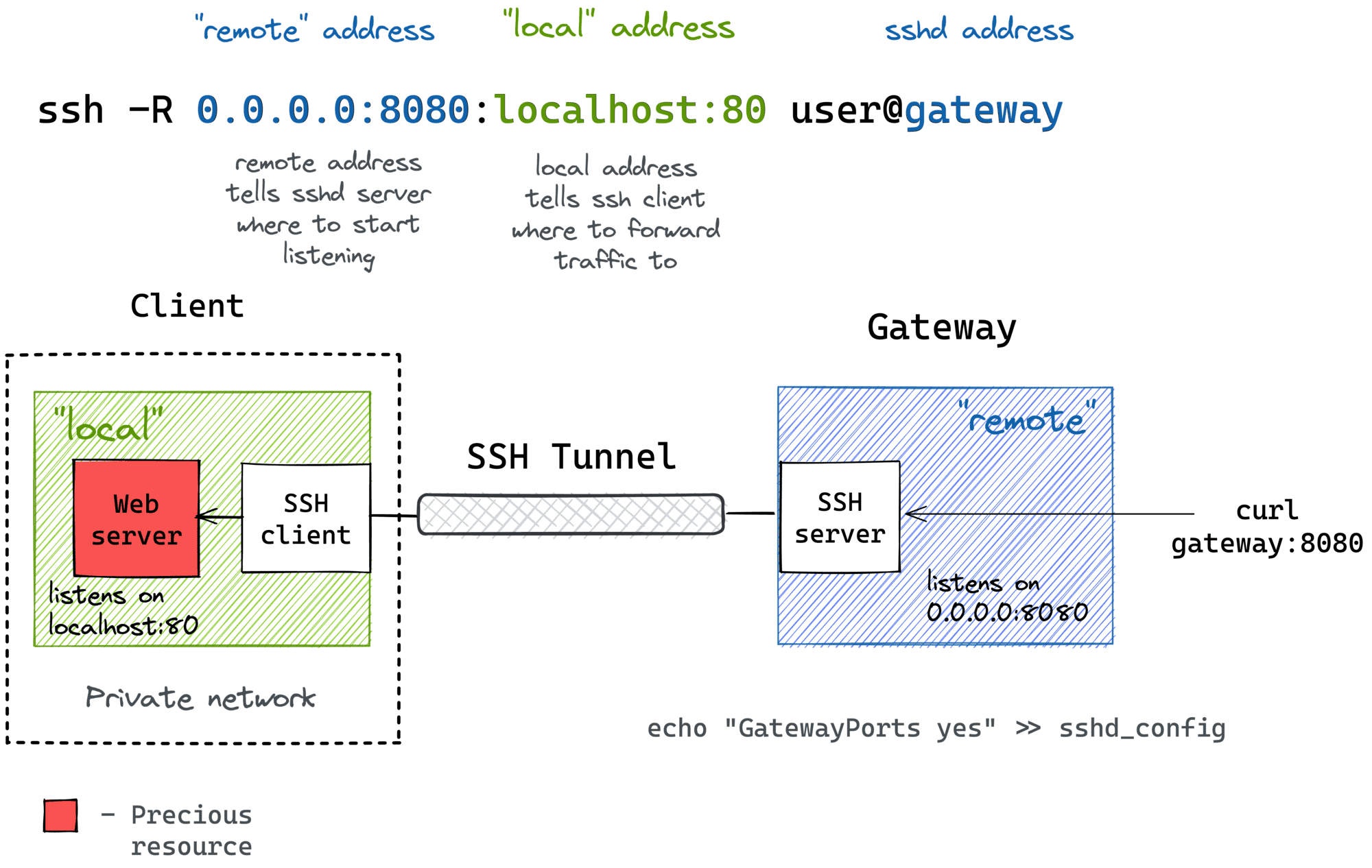
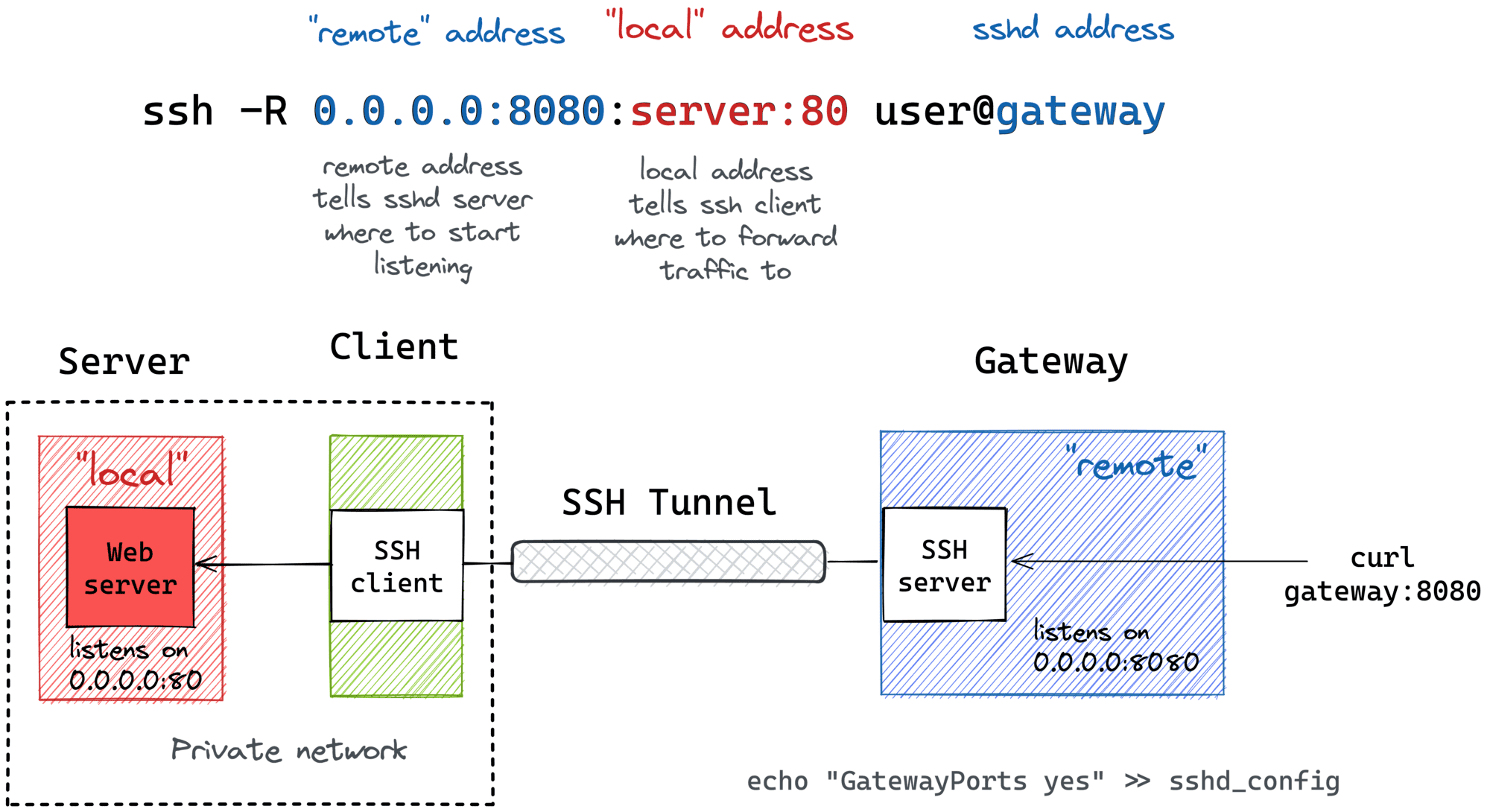
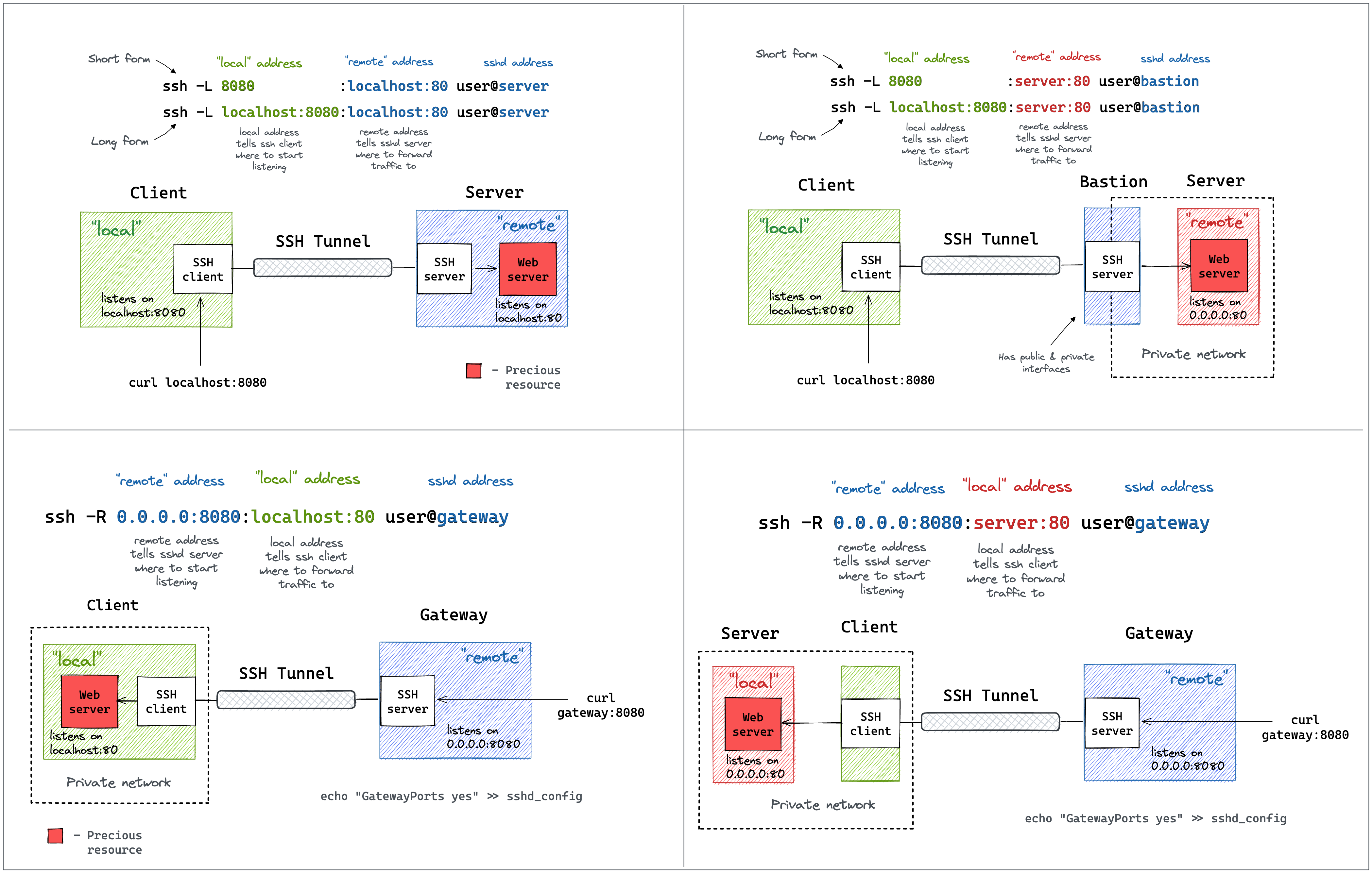
Port Forwarding
Port Knocking
一種保護 SSH 外部網路存取的方式,原理是外部網路透過 Knock 機制,敲特定埠號組合,可以控制主機端 SSH 防火牆的開啟與關閉。
SFTP
Chroot jails
- How to set up SFTP to chroot only for specific users
- How to configure an sftp server with restricted chroot users with ssh keys
- Linux 建立 SFTP 專用帳號,並設定 Chroot 環境教學
- How to set up Linux chroot jails
- Restrict SSH User Access to Certain Directory Using Chrooted Jail
踢掉已登入 sftp 的 user
> ps -ef | grep i04181
root     2165397     988  0 12:01 ?        00:00:00 sshd: i04181 [priv]
i04181   2165401       1  0 12:01 ?        00:00:00 /usr/lib/systemd/systemd --user
i04181   2165403 2165401  0 12:01 ?        00:00:00 (sd-pam)
i04181   2165410 2165397  0 12:01 ?        00:00:00 sshd: i04181@notty
i04181   2165411 2165410  0 12:01 ?        00:00:00 /usr/libexec/openssh/sftp-server
root     2166995 2165217  0 13:22 pts/0    00:00:00 grep --color=auto i04181

> pstree -p i04181
sshd(2165410)───sftp-server(2165411)

systemd(2165401)───(sd-pam)(2165403)

> kill 2165410
SCP
PuTTY
Tools
- EasySSH - Multiple SSH Sessions in a Single Window with EasySSH | TechRepublic
- Shellngn - Online SSH Client with SFTP, VNC, RDP - Shellngn
FAQ
RHEL 6 連線至較新版 RHEL 8 時發生錯誤
no hostkey alg
在 RHEL 6 執行以下指令
ssh-keygen -t ecdsa -f /etc/ssh/ssh_host_ecdsa_key -C '' -N ''
chmod 600 /etc/ssh/ssh_host_ecdsa_key
chmod 640 /etc/ssh/ssh_host_ecdsa_key.pub
restorecon /etc/ssh/ssh_host_ecdsa_key.pub
編輯 /etc/ssh/ssh_config
Host <rhel8-hostname/IP>
  HostKeyAlgorithms ecdsa-sha2-nistp256,ecdsa-sha2-nistp384,ecdsa-sha2-nistp521
Learning
- How To Set up SSH Keys on a Linux / Unix System
- Top 20 OpenSSH Server Best Security Practices
- How to Set a Custom SSH Warning Banner and MOTD in Linux
- Protect SSH Logins with SSH & MOTD Banner Messages
- SSH ProxyCommand example: Going through one host to reach another server
- How To Reuse SSH Connection To Speed Up Remote Login Process Using Multiplexing
- 10 Actionable SSH Hardening Tips to Secure Your Linux Server
- How to audit SSH server and client config on Linux/Unix
- Ezeelogin (Commercial) - Setup a self hosted Jump server on your premise to manage SSH access to Linux servers, Routers, Switches, Cloud instances .
Web SSH
- Shell In A Box – A Web-Based SSH Terminal to Access Remote Linux Servers
- Bastillion is a web-based SSH console that centrally manages administrative access to systems.
SSH Auditing
- Teleport - The open source access platform used by DevSecOps teams for SSH, Kubernetes, databases, internal web applications and Windows.
Commands